
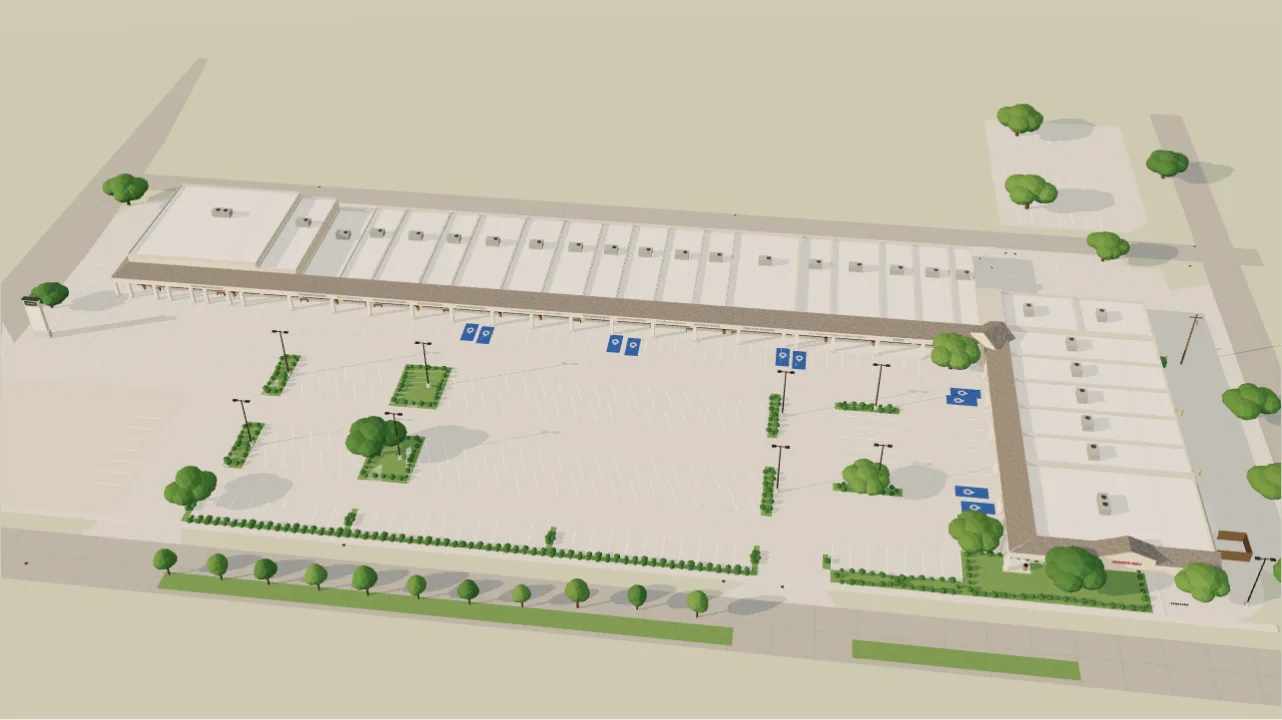
Contents
Version October 20, 2026 · covers the 28-sheet production build (1,138 tests) Live app: https://otb.cypresscommand.com (also orangeoceanatlas.com · otb-command.vercel.app) · Operator: adam@adamabdalla.com
This re-cut supersedes the October 5 edition. It is written to run the property from: every sheet has a short description, then "How do I…" recipes — what to click, what is saved and where, and who can see it.
About the figures. Every screenshot is a capture of the current build. Figures that show dollar amounts use fictional tenant names and banded sample economics (one rate per use type, round-number budgets) — never actual rents, budgets or sales. Figures without dollar amounts may show the public tenants of record.
Part I is orientation and the access model, Part II the operator's day, Part III each sheet in depth, Part IV the public pages and marketing, Part V the counterparty guides, Part VI the rhythms, Part VII administration and recovery.
New in this edition (October 20, 2026). R-2 now carries the market rent comps register, and every vacancy and near-term renewal shows a comps $/SF range on its row (§3.8). S-1 gains the one-click diligence package (button and
npm run diligence-package) (§3.15). P-1 gains budget vs actual: annual budget, month close, variance chart and full-year reforecast (§3.14). D-1 gains the Tenant Watch list, and tenants can now report monthly sales (opt-in) from their M-1 page (§3.2, §5.3). /leasing was rebuilt from the 2026 Leasing Portfolio, and the leasing-package e-mail now links the portfolio PDF (§4.1). The 2026 marketing package (day/night aerial spreads with today's signage) is indocs/marketing-package-2026/(§4.3). Call alerts (masthead bell, toasts, phone push) and 📦 Send leasing package are on L-1 (§3.24). X-1 Lab now holds the showcase sheets — A-4 to A-10 and B-1 — off the main index (§3.12), including two new ones: A-9 Realism Twin and A-10 Render Studio. Dark-mode contrast fixes in the unit drawer and masthead ribbon.
- 1.1Signing in
- 1.2The drawing set — the sheet index
- 1.3The masthead
- 1.4The unit drawer — the universal detail surface
- 1.5Phones and tablets
- 1.6Light and dark
- 3.1D-0 Portfolio
- 3.2D-1 Dashboard
- 3.3A-1 Site Plan
- 3.4A-2 Spatial
- 3.5A-3 Asset Twin
- 3.6The E-Sign panel (drawer → E-Sign)
- 3.7R-1 Rent Roll
- 3.8R-2 Rent Worksheet and market rent comps
- 3.9C-1 Compliance
- 3.10T-1 Critical Dates
- 3.11K-1 Directory
- 3.12X-1 Lab
- 3.13The Lab sheets (A-4 to A-10)
- 3.14P-1 Financial
- 3.15S-1 Owner Safe
- 3.16AI-1 Concierge
- 3.17The voice line
- 3.18AI-1 History — the daily scan
- 3.19The Ledger in practice (drawer → Ledger)
- 3.20W-1 Action Board
- 3.21N-1 Matters
- 3.22O-1 Operations
- 3.23B-1 Marketing (Lab)
- 3.24L-1 Comm Log
- 3.25V-1 Vendor Portal (operator face)
- 3.26M-1 Maintenance (operator face)
- 4.1/leasing — the leasing page
- 4.2/tour — the tour microsite
- 4.3The 2026 marketing package
- 4.4Marketing rules
- 5.1Owners
- 5.2Vendors
- 5.3Tenants
- 5.4Document signers
- 6.1Daily (mostly automatic)
- 6.2Monthly
- 6.3When a lease is signed or a fact changes (governed SOT update)
- 6.4Annually and periodically
- 7.1The admin panel (sidebar, operator only)
- 7.2Quality gates (never skip)
- 7.3Deploying
- 7.4Backup & portability
- 7.5Secrets
- 7.6The camera (C3) pipeline
- 7.7Known limits (deliberate v1 boundaries)
Sheet index — 28 sheets
The left sidebar of the app, in drawing-set order. Every sheet is derived from the same governed data; roles see only the sheets they are granted.
PART IOrientation
§1.1Signing in
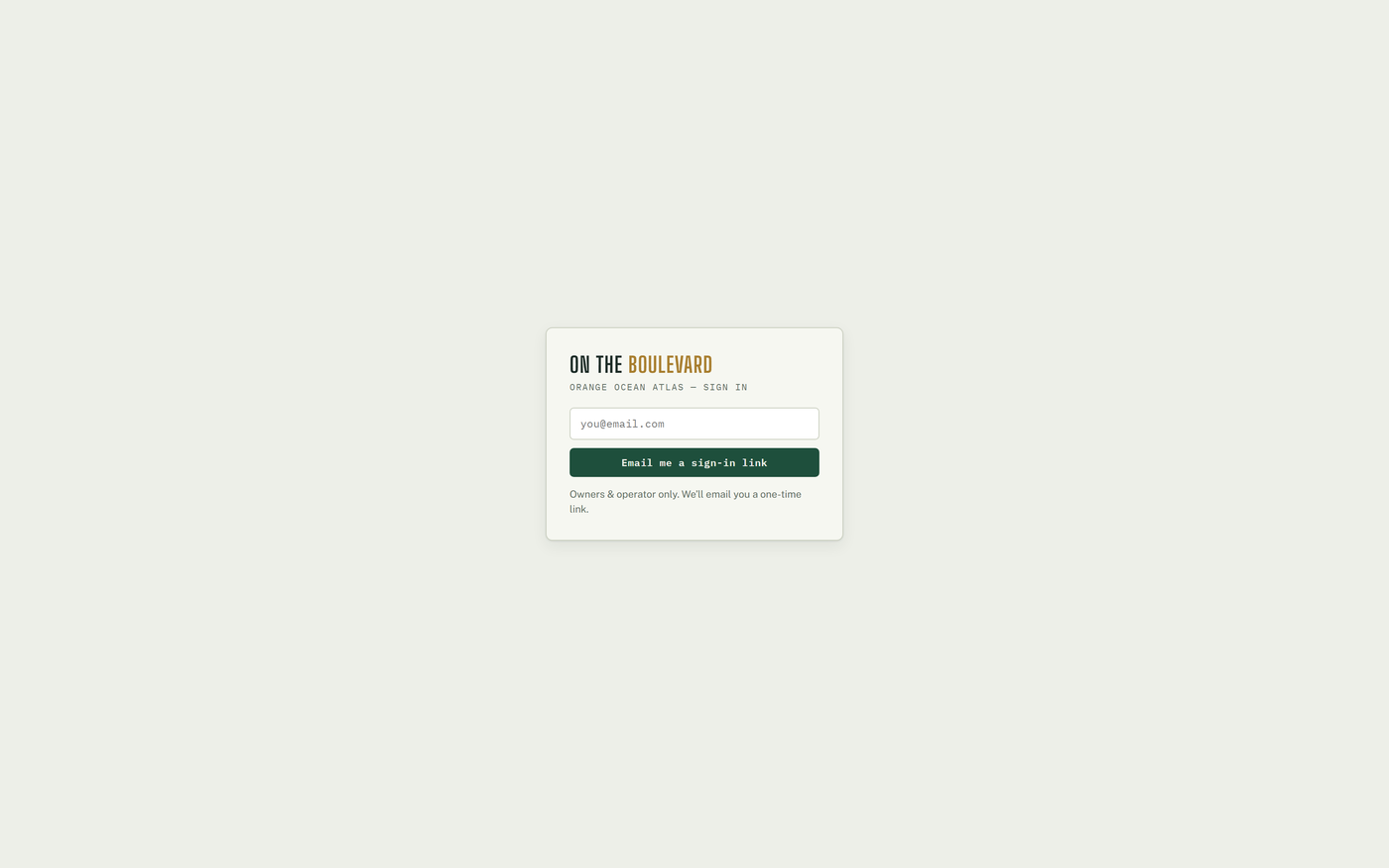
There are no passwords. Enter your e-mail, click Email me a sign-in link, then click the link that arrives. Your role is resolved automatically:
| You are… | How the system knows | You see |
|---|---|---|
| Operator | adam@adamabdalla.com | Everything; the only role whose edits sync to the server |
| Owner | pre-authorized e-mail (§7.1) | The sheets the operator ticked, read-only |
| Vendor | e-mail matches the V-1 vendor roster | V-1 Vendor Portal only |
| Tenant | e-mail in M-1 → Tenant logins | M-1 Maintenance only, own unit |
| Anyone else | — | "Access pending" screen; no data |
If a legitimate person lands on pending, promote them from Sign-in access… (§7.1). Sign out is on the account line at the foot of the sidebar.
§1.2The drawing set — the sheet index
The left sidebar is a sheet index, like an architect's drawing set. Twenty sheets are on the main index; eight showcase sheets sit behind X-1 Lab (§3.12).
| Group | Sheets |
|---|---|
| Dashboards | D-0 Portfolio · D-1 Dashboard |
| Spatial & twin | A-1 Site Plan · A-2 Spatial · A-3 Asset Twin |
| Money | R-1 Rent Roll · R-2 Rent Worksheet (+ rent comps) · P-1 Financial |
| Obligations & records | C-1 Compliance · S-1 Owner Safe · T-1 Critical Dates · K-1 Directory |
| Intelligence & work | AI-1 Concierge · W-1 Action Board · M-1 Maintenance · O-1 Operations |
| Outreach | L-1 Comm Log · N-1 Matters |
| Counterparties | V-1 Vendor Portal |
| Lab (X-1) | A-4 Site Evidence · A-5 Exterior & Site · A-6 Asset Library · A-7 Visual Library · A-8 Styled Twin · A-9 Realism Twin · A-10 Render Studio · B-1 Marketing |
The URL tracks the open sheet (#roll, #plan, #fin…): the back button walks your
history and a link can deep-link any sheet, including Lab sheets. Boot lands on D-1.
§1.3The masthead
- KPI ribbon — Occupancy → R-1 · Rent / mo → P-1 · Vacant → A-1 · Expiring ≤ 12 mo → T-1 · Needs attention → W-1. Each figure is a button to its sheet.
- Search — press / anywhere outside a text field. Units open the drawer; contacts and documents open K-1. Enter opens the top hit, Esc closes.
- ⤓ SHEET (or Ctrl+P) — prints the open sheet as a stamped PDF in the light theme. R-1 always fits one page; R-2 prints portrait. Owners keep this button.
- EXPORT JSON — downloads
otb-command-state-YYYY-MM-DD.json, every persisted layer. - IMPORT JSON — replaces every layer from a file and reloads, without a confirmation prompt. Take an Export first (§7.4). Files bound to another account or property are rejected. Hidden for owners and vendors.
- 📞 N NEW CALLS bell — appears for operator and owner when unhandled calls exist; turns hot on an emergency; click → L-1 (§3.24).
The masthead is laid out for wide screens; below roughly 1,600 px wide the address and the GLA stamp crowd. Use the browser zoom (Ctrl −) if it clips.
§1.4The unit drawer — the universal detail surface
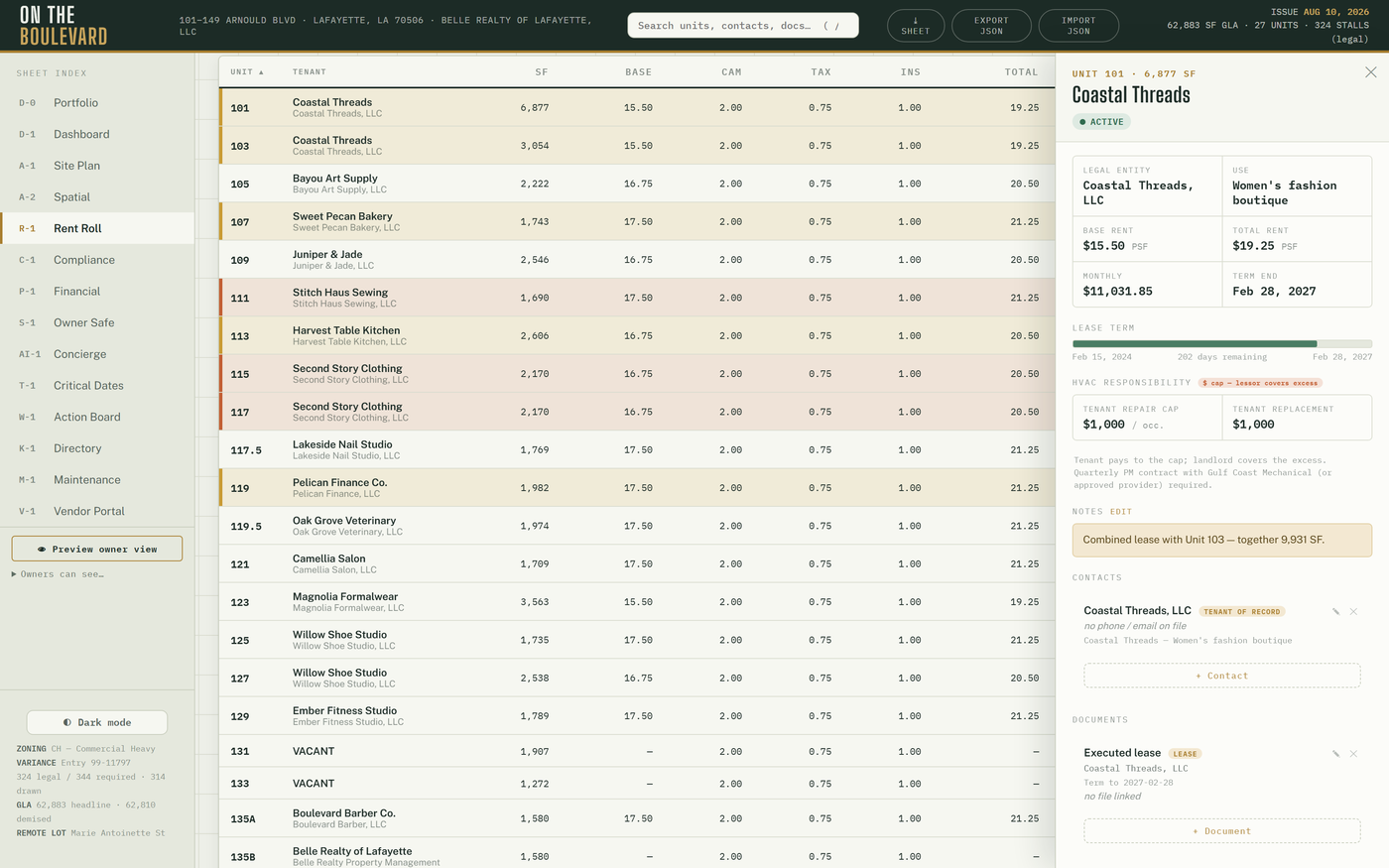
Click any unit anywhere — A-1, R-1, R-2, A-2 lenses, search, Tenant Watch — and the drawer opens. Close with ✕ or Esc. Panels, top to bottom:
| Panel | What it does | Who edits | Saved to |
|---|---|---|---|
| Header + facts | Legal entity, use, base / total rent, monthly, term end, lease-term bar, lease evidence | — (read-only) | — |
| HVAC | Systems and PM contracts; Log service, lapsed / reactivate, + Add contract (149: From §9.01) | Operator | hvac_units, hvac_contracts |
| Notes | Add note / Edit → Save | Operator | notes layer → unit_notes |
| Contacts · Documents | + Contact / + Document, ✎, ✕; documents take 📎 Attach file | Operator | contacts / documents layers → directory_state |
| Photos & Plans | + Add image or drag-drop; click → lightbox; ✕ | Operator | Private assets bucket |
| Ledger | Balance, last 10 entries, add row, late-fee chips, void, ⤓ Statement | Operator (owners read) | ledger_entries (append-only) |
| Invoices | ⤓ Invoice, Mark sent, Void | Operator | invoices (status only) |
| Prior payments · AC | 13 months of predecessor payment history | — | payment_history |
| Lease | Lease assembly → ⤓ DOCX, ⤓ HTML, → E-Sign | Operator only | nothing stored |
| Lease abstract · AC | Abstracted terms, escalations, options | Operator only, read-only | lease_abstracts |
| E-Sign | Signing requests (§3.6) | Operator | esign_requests |
| Compliance | Click a row to cycle Unverified → On file → Flag → N/A | Operator | comp layer → comp_state |
Owners see the drawer read-only. A few controls (note editing, the contact/document ✕, compliance cycling) are not hidden for owners, but an owner's edit never leaves that browser — only operator edits sync.
How do I record a check that came in the mail?
- Open the unit's drawer → Ledger.
- Type Payment received, enter the amount, the date received and a memo (check #).
- Add. The running balance updates; the entry is permanent (void = reversing entry).
How do I send a tenant a statement or an invoice?
- Drawer → Ledger → ⤓ Statement, pick the month → a branded statement opens; print or save as PDF and send it yourself.
- For an invoice: Invoices → ⤓ Invoice, send it, then Mark sent. Void if it was wrong (confirmation asked).
How do I correct a ledger mistake?
Click ✕ on the entry → confirm. A reversing entry is written; the original row stays in history. Then add the correct entry.
How do I attach a signed lease to a suite?
Drawer → Documents → + Document → fill title / dates → Save → 📎 Attach file. The row's link becomes Open 📎, which always serves a fresh secure URL.
§1.5Phones and tablets
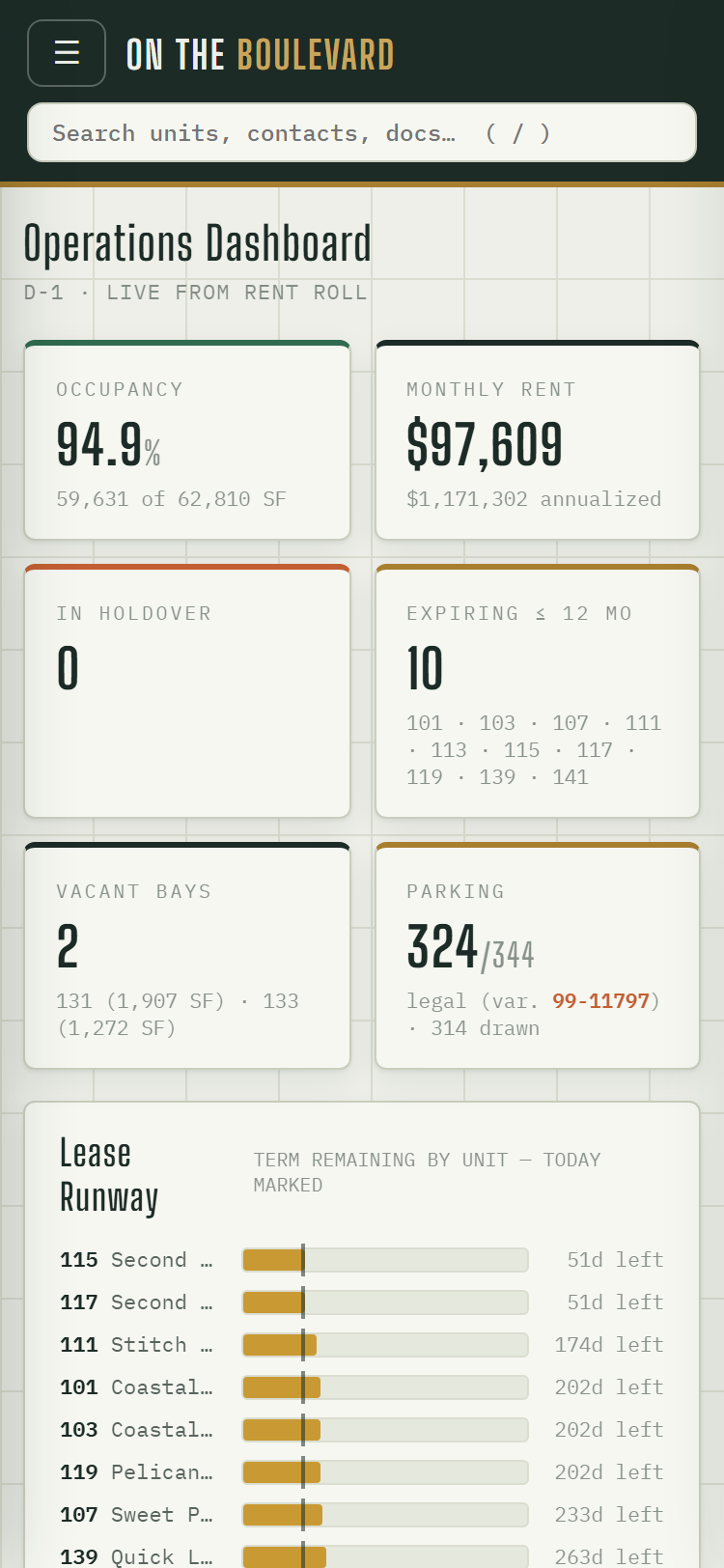
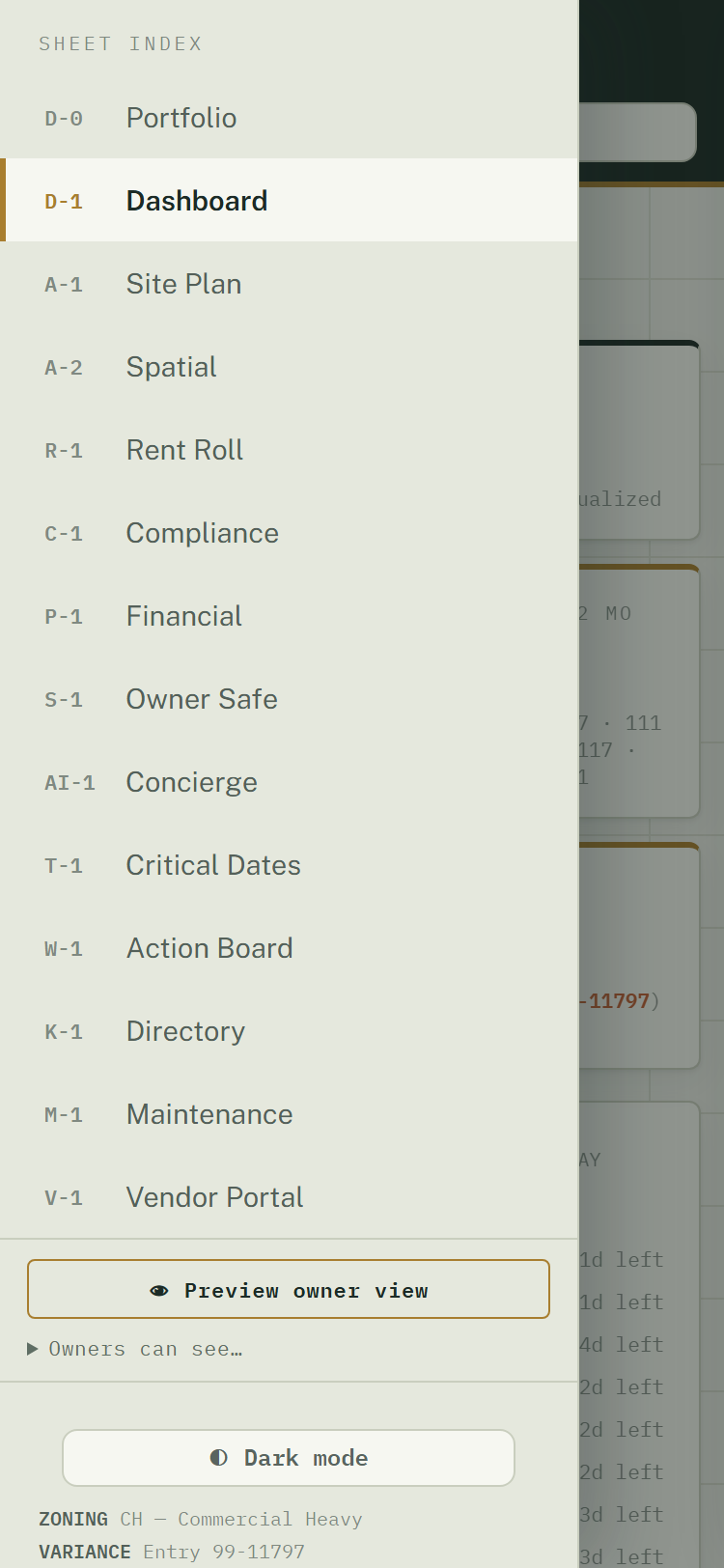
At phone widths the sheet index becomes a drawer behind the ☰ button, grids collapse to one column and the unit drawer goes full-screen. Everything works on a phone; nothing is phone-only. For call alerts on a phone, see §3.24.
§1.6Light and dark
Dark mode / Light mode at the sidebar foot (remembered per browser). Print always reverts to paper. The 📖 User manual link beside it opens this manual for any role.
PART IIThe operator's day
A normal day touches six surfaces, in this order:
- D-1 Dashboard — the KPI cards, Action Queue and Tenant Watch. A brick-red card is telling you something; the Automation (cron) card going STALE means every daily safety net is silent (§3.2).
- L-1 Comm Log — the Calls · 7 days strip → N need attention. Read each call's summary, play the recording if needed, act, then ✓ Mark handled (§3.24).
- M-1 Maintenance — new requests from the tenant portal and the phone line. Assign a vendor, start, finish (§3.26).
- W-1 Action Board — the board seeds itself from live facts (holdovers, renewal windows, vacancies, compliance flags, covenants, open work orders, deals). Move cards, archive what is handled (§3.20).
- AI-1 History — the 11:00 UTC scan opens one thread per new condition: a renewal window, a holdover, an occupancy dip, a quiet camera pipeline, an unbooked voice lead, an unmatched or failed ACH payment, overdue SOPs. No new condition, no thread (§3.18).
- Paper → the system, same day. A signed lease → the SOT update (§6.3). A COI → V-1 (§3.25). A check → the ledger (§1.4). A letter or call → L-1 + Log entry.
Month-end adds the P-1 month close and the R-2 check (§6.2).
PART IIISheet-by-sheet
Each sheet lists Who (roles that see it) and Saved to (where its edits persist). "Hosted only" means the sheet needs the live backend and shows a notice in local mode.
§3.1D-0Portfolio
One card per property you can see: A/R outstanding (positive unit balances from the ledger, "N units in arrears") and Open work orders ("N unassigned"). The active property is tagged ACTIVE; any other card has Open →, which switches property and reloads. With two or more properties a Property dropdown also appears in the sidebar.
Who: operator, owners if ticked. Saved to: nothing (the active-property choice is remembered per browser). Hosted only. See the onboarding manual for adding a property.
§3.2D-1Dashboard
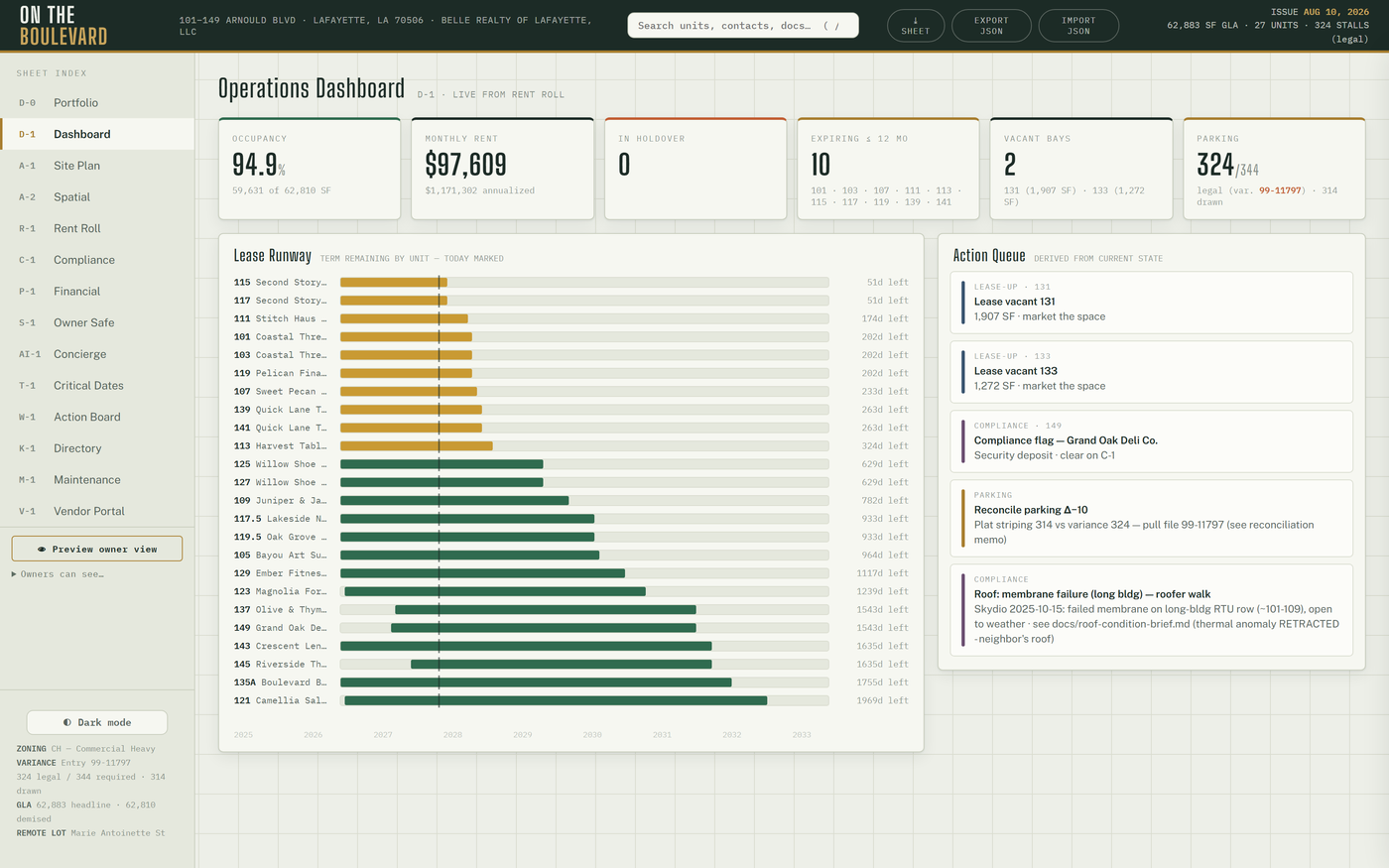
Read-only, derived from live data. Cards: Occupancy · Monthly Rent · In Holdover · Expiring ≤ 12 mo · Vacant Bays · Parking (324 / 344, variance 99-11797), then — on the hosted build, each only when it has data — Calls · 7d, Network (UniFi), Parking Occupancy (C3) with its 7-day trend, Automation (cron) (green with last-run age; brick-red STALE after 26 hours), sign-in audit and Client Errors (24h) (operator only). Lease Runway charts term remaining per unit with today marked. Action Queue lists W-1 cards in the Action lane or overdue, most overdue first.
Tenant Watch
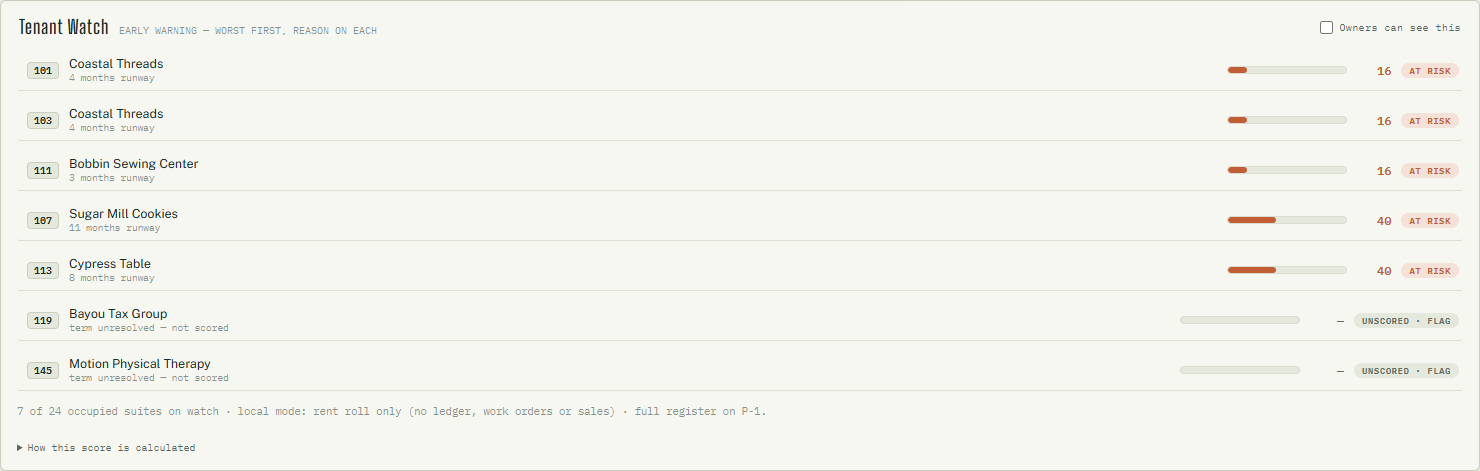
An early-warning list of occupied suites in the Watch or At risk band, or carrying any flag, worst first; each row gives the reasons, the score and a band chip. Click a row → drawer. The footer counts suites on watch and points to the full register on P-1.
How the score works (also in the sheet's "How this score is calculated" fold): points earned ÷ points available, 0–100. A component with no data is left out, not scored zero.
| Component | Max | Rule |
|---|---|---|
| Payment | 45 | Predecessor record: late −3, partial −5, unpaid −8. Live ledger: paid after the 5-day grace −5, open past grace −8, NSF −8, any balance > 60 days −10 |
| Work orders (12 mo) | 15 | Emergencies count double: 0–1 → 15 · 2–3 → 10 · 4–5 → 5 · 6+ → 0 |
| Lease runway | 25 | ≥ 24 mo → 25 · 12–24 → 18 · 6–12 → 10 · < 6 → 4 · past term → 0; blank end = "term unresolved" (flag, not scored) |
| Sales | 15 | Only with ≥ 2 months reported: recent average vs prior. ≥ 0% → 15 · to −10% → 10 · to −20% → 5 · worse → 0; occupancy cost > 15% of sales −5 |
Bands: ≥ 70 OK · 55–69 Watch · < 55 At risk. Flags list a suite regardless of score: term unresolved, rent open past grace, NSF, balance 60+ days, sales lapsed (newest month more than 2 months old). Vacant and owner-occupied suites are skipped.
How do I let the owners see Tenant Watch?
Tick Owners can see this in the card header (operator only). That one switch also opens tenant sales figures to owners at the database. Untick to withdraw both.
How do I get tenant sales into the score?
Tenants enter them; you do not. Tell a tenant: sign in → M-1 → Monthly sales (optional) → month, Gross sales $ → Save (§5.3). Two months reported switches the Sales component on for that suite.
Who: operator; owners if D-1 is ticked (Tenant Watch only when shared). Saved to:
the sharing switch → tenantHealth layer; sales → tenant_sales.
§3.3A-1Site Plan
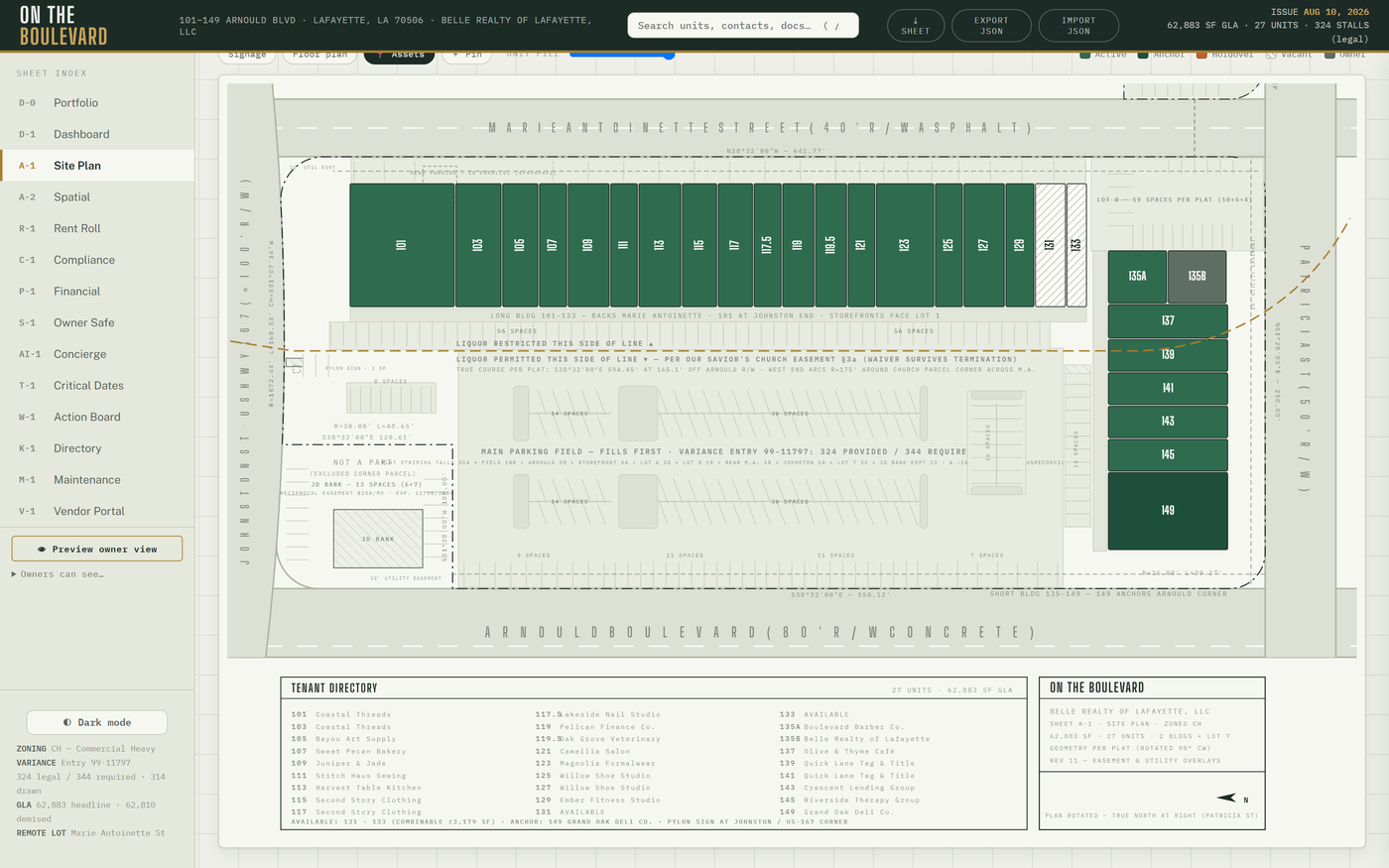
The recorded plat, interactive. Controls, left to right:
- View presets — Leasing · Daily Ops · Building Systems · Common Areas · Signage · Roof · Site / Hardscape. Each sets the colour mode, scope and overlays; toggling any chip by hand drops the preset highlight.
- Scope — Main parcel / Full site + remote lot (Lot 7).
- Colour mode — Status · Expiration · Rent PSF · Size · Use Type · HVAC exposure.
- Overlays — 📷 Photos · 🅿 Parking (all 324 striped stalls: the 314 the plat labels + the 10-stall Johnston row, confirmed 9/29/2026; 324 = the variance's "324 provided") · ⇆ Access (every curb cut with its throat width, the Arnould median and its one 55' opening) · § Easements (liquor line, church note, utility and guy easements) · 🎥 Cameras (17 mounts with view cones) · 🚗 Occupancy (hosted only) · Roof / HVAC · Signage · Floor plan · 📍 Assets.
- Sliders — overlay opacity and unit opacity.
- ◫ Register — the site register panel: category chips, Isolate highlighted, Show labels, a find box ("C12", "stall-lot8-003"…), Focus on this asset, Reset view, ⤓ CSV, ⤓ JSON.
How do I make a clean leasing exhibit?
View → Leasing, switch § Easements and 🎥 Cameras off, colour by Status, then ⤓ SHEET.
How do I mark a water shutoff (or a reserved stall, a dumpster pad…)?
📍 Assets on → + Pin → click the spot → pick the type, add a label and notes → Save. Click a pin later to edit or Delete. Pins also show on the A-2 satellite lens.
How do I correct a camera's position or aim?
🎥 Cameras on → ✎ Adjust cams → drag the pin to move, drag the ◆ to re-aim, double-click to reset.
How do I export the parking or site register?
◫ Register → highlight a category if you want a subset → ⤓ CSV (or ⤓ JSON).
Who: operator; owners by default (read-only — pins and cameras are locked for them).
Saved to: pins → features layer → site_features; camera corrections → cameras layer →
camera_overrides. Presets and register state are not saved.
§3.4A-2Spatial
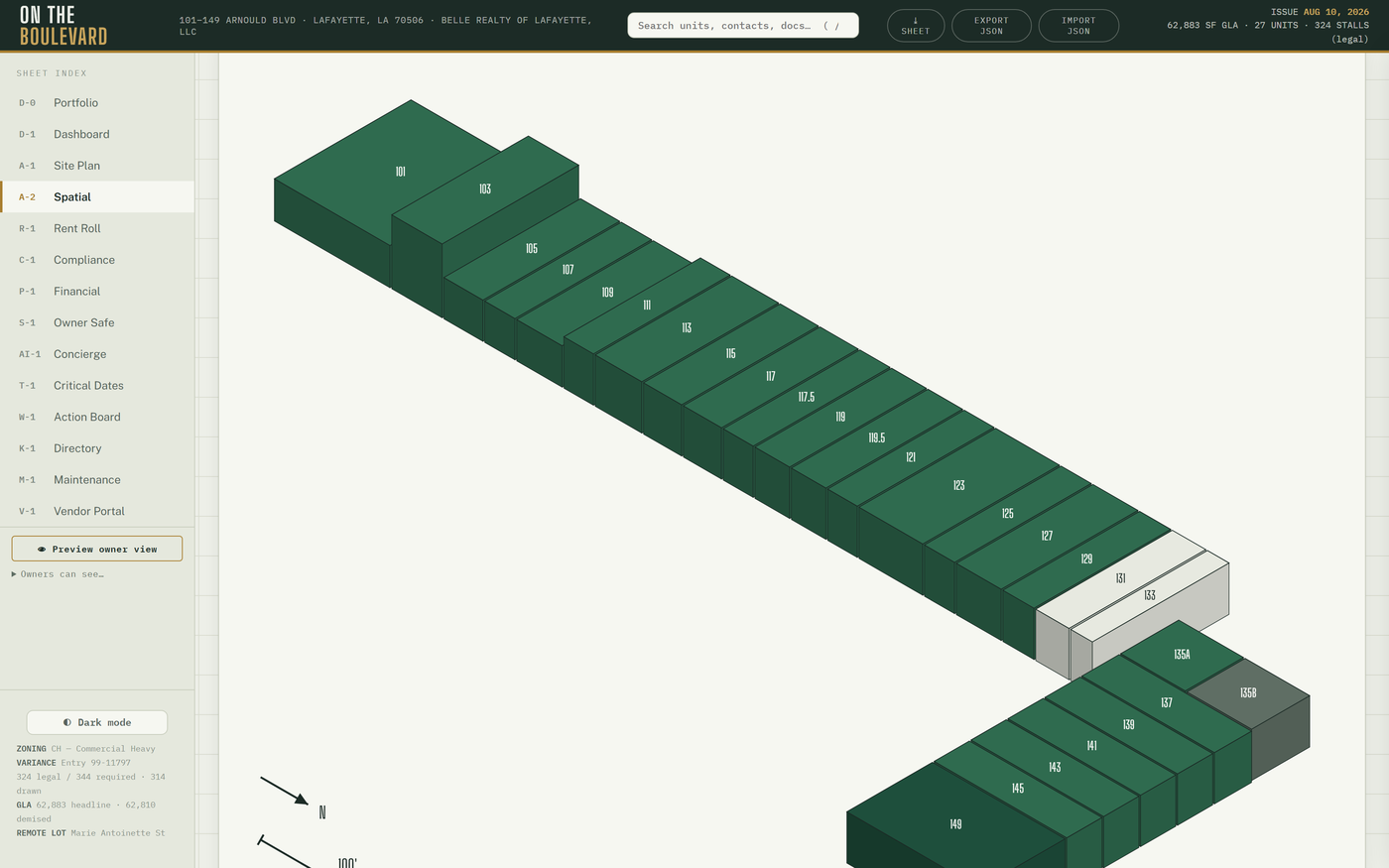
The capture lenses: ▱ Isometric (survey heights; ⇅ True heights toggles plat-true vs presentation heights; ⤓ SVG exports it), ◧ 3D (drone-skinned mesh), 🛰 Satellite (georeferenced footprints and pins, Marie Antoinette at top), 🎥 Reality (the drone Gaussian splat; ▦ toggles unit overlays) and 🌐 Google 3D (needs the Map Tiles key — without it the pane says how to enable it). One selection is shared across lenses and sheets: pick a unit anywhere and it is picked here.
How do I show an owner the center in 3D?
A-2 → 🎥 Reality, drag to orbit, click a storefront → drawer. For a presentation-grade view use A-8 or A-9 instead (Lab).
Who: operator; owners only if ticked (off by default — it is heavy). Saved to: nothing.
§3.5A-3Asset Twin
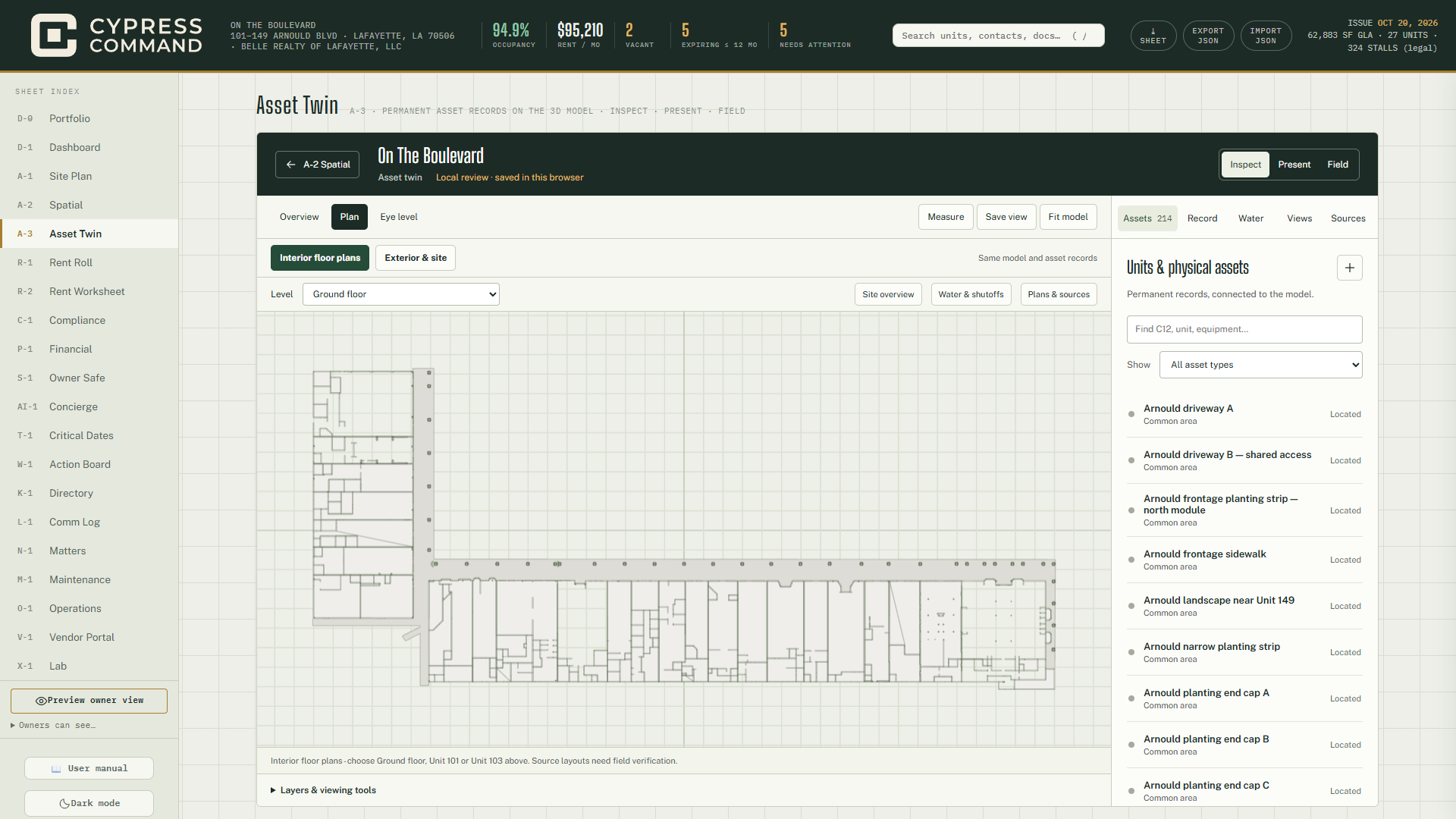
The permanent record of every physical asset — columns, water, fixtures, common areas — placed on a 3D model of the center. Asset IDs are permanent: geometry improves, IDs never renumber.
- Mode: Inspect · Present · Field. Camera: Overview · Plan · Eye level. Tools: Measure · Save view · Fit model.
- Views: Interior floor plans · Exterior & site · a Level select · Site overview · Water & shutoffs · Plans & sources.
- Tour bar: Previous stop · Next stop · Play tour · Stop.
- Layers: Highlight columns, Show canopy, Building walls, Fade walls, Colour by inspection, Suite labels, Equipment pins, City meter / tenant shutoff map points; Section height slider; Clear measure.
- Panel tabs: Assets · Record · Water · Views · Sources.
How do I report a problem on a physical asset?
Select the asset → Record tab → Record an issue. A linked M-1 work order is created.
How do I log an inspection or add photos to an asset?
Select the asset → Record → Add an inspection or Add photos.
How do I put a QR tag on an asset?
Select it → Asset link & QR → print the downloaded SVG tag. Scanning it opens the
asset directly (/?asset=pa_…#twin).
How do I save a camera position for later?
Frame the view → Save view. Saved views live in this browser only.
Who: operator (writes) and owners (read) on the hosted build, when the twin release flag
is on. Saved to: physical_assets and its binding, inspection and photo tables; photos →
physical-asset-photos bucket; saved views → this browser. The Views tab downloads
the model as .glb / .json.
§3.6The E-Sign panel (drawer → E-Sign)
- Fill Document title, Signer name, signer e-mail and, optionally, a documents path for the file to review → + Signing request.
- Copy link or Copy message and send it through your own e-mail or text. The app sends nothing — deliberately.
- The signer opens a plain branded page (no login), reviews, and signs or declines under E-SIGN / LA-UETA consent language.
- Watch the status (sent → viewed → signed / declined / expired). ↻ Re-send reissues a fresh link and kills the old one; ✕ cancels; Receipt gives the signed receipt.
A link has one lifecycle: double-signing or declining after signing is refused by the
database. Owners see requests read-only. Saved to: esign_requests.
How do I prepare a lease and send it for signature?
Drawer → Lease → fill the assembly form → ⤓ DOCX for legal review → when final, → E-Sign to start the request with the document attached.
§3.7R-1Rent Roll
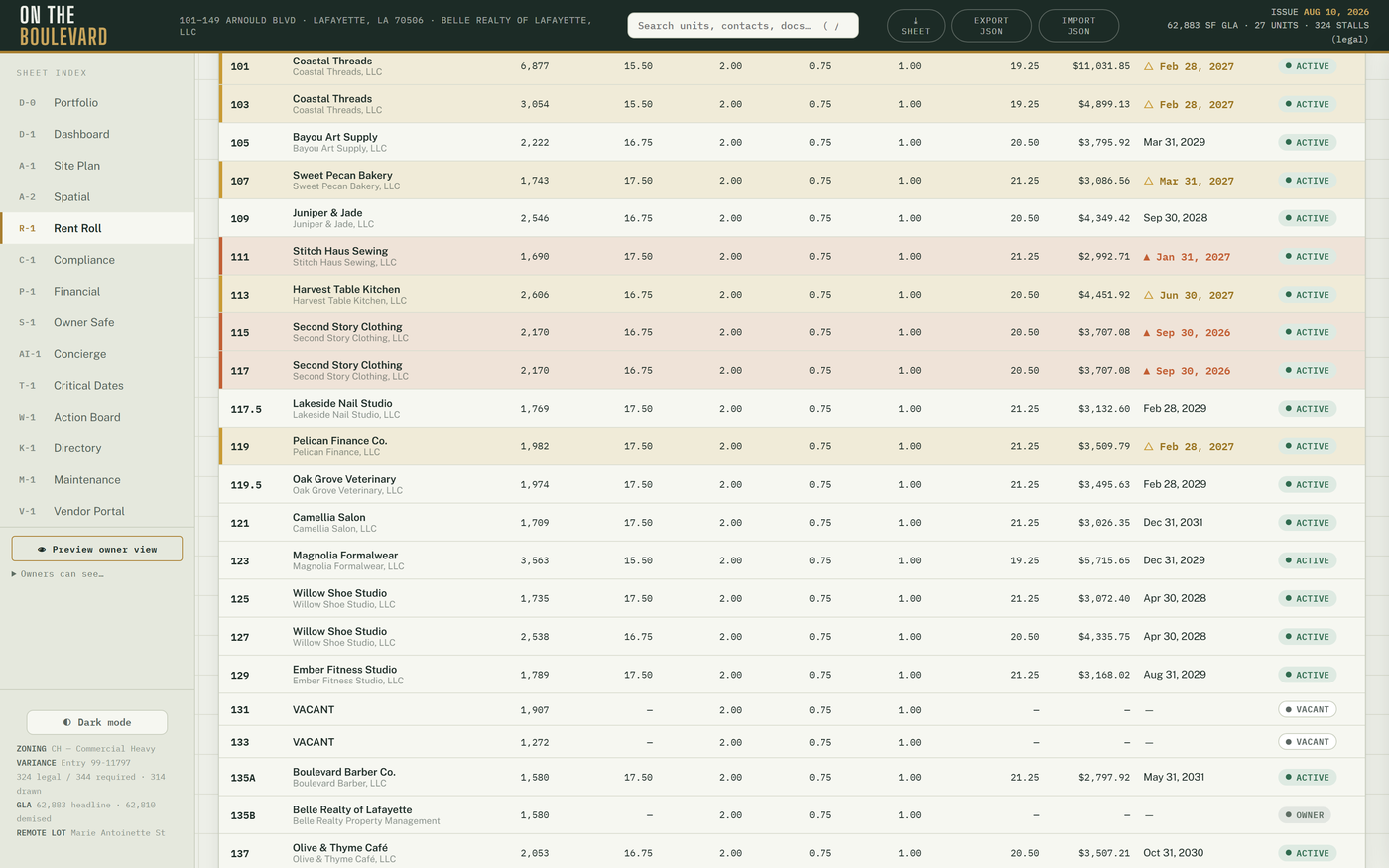
Columns: Unit · Tenant · SF · Base · CAM · Tax · Ins · Total ($/SF) · Monthly · Term End · Status. Any bare monthly amount is total rent (base + additional). Click a header to sort (▲/▼), a row to open the drawer. Expiry markers: ▲ brick ≤ 6 months, △ amber 6–12 months, with the legend in the stamp; the footer gives totals and gross PSF.
How do I print the owner one-pager?
R-1 → ⤓ SHEET. The layout measures itself and always fits one page.
Who: operator; owners by default. Rent figures need a signed-in owner or operator session — everyone else sees "—". Saved to: nothing (R-1 reads the SOT; changes go through §6.3).
§3.8R-2Rent Worksheet and market rent comps
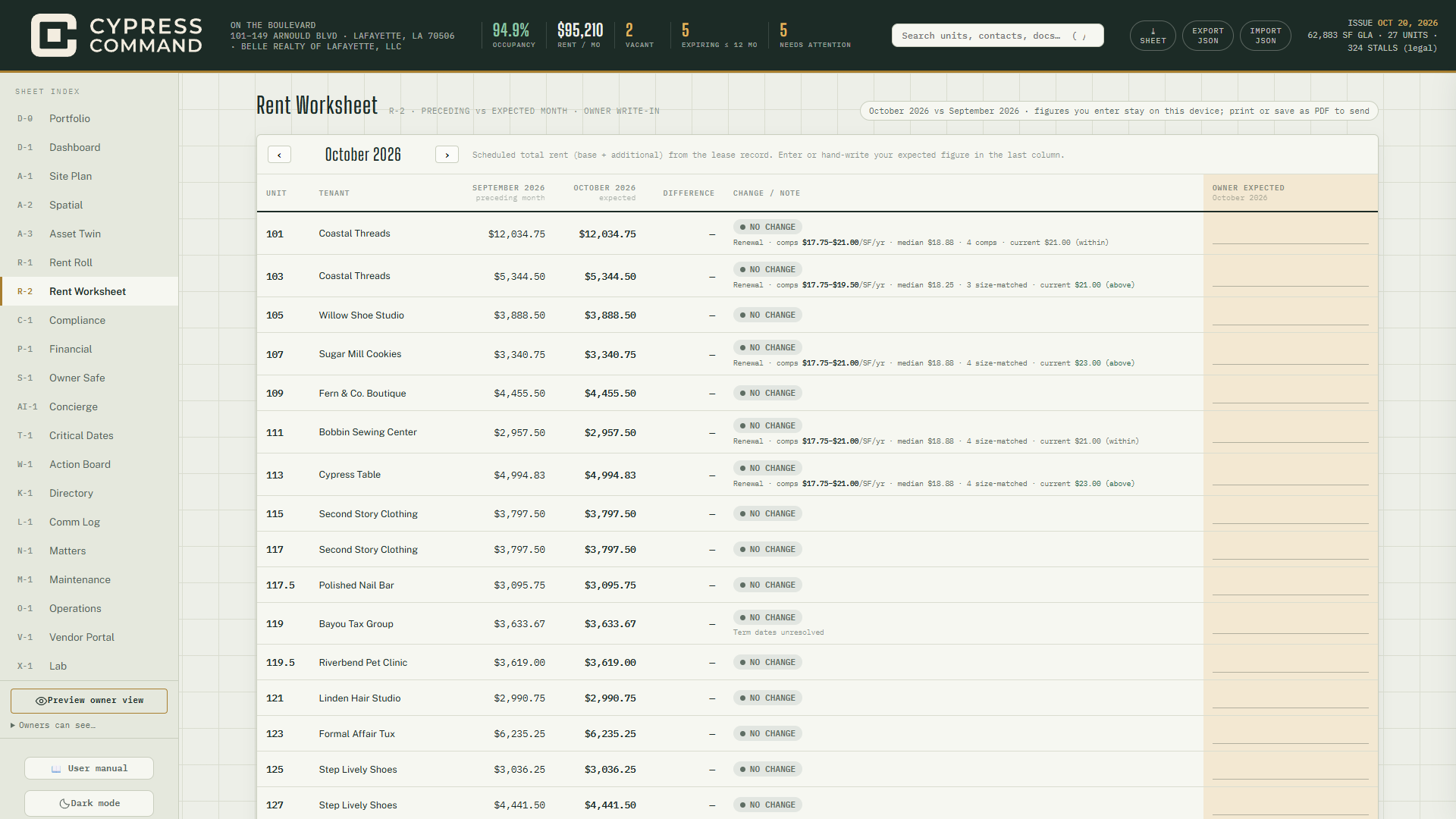
Built at the owners' request: a per-suite check of the preceding month's scheduled total rent against the expected month, with a column for the owner's own figure.
- ‹ › — change month. Columns: Unit · Tenant · preceding · expected · Difference · Change / note · Owner expected.
- Change / note pills explain every move: No change · Increase · Decrease · Abatement · Abatement ends · New term · Vacant · Owner-occupied · Term expired.
- Owner expected — type your figure; a mismatch with the schedule is highlighted and the totals update. Figures stay in this browser only (never synced). Clear my figures resets the month.
- Click a unit or tenant → drawer. ⤓ SHEET prints portrait with "Reviewed by / Date".
Market rent comps

Under the worksheet, the Market rent comps card holds every comp you have collected — total $/SF/yr, internal, screen only, never printed or marketed. Each suite being priced gets a line under its Change / note:
- Vacancy — a vacant suite: "Vacancy · comps $low–$high/SF/yr · median · n".
- Renewal — a lease ending within 18 months of the month shown, or already past: the same range plus whether the suite's current rate is below / within / above it. Suites with a blank lease end are left out.
- No comps → "no comps on file — add below".
Range rules: comps older than 36 months, or dated after the month shown, are excluded (undated comps count but are noted). When two or more comps are within half to double the suite's SF, only those are used ("size-matched").
How do I add a comp?
- R-2 → scroll to Market rent comps.
- Fill Address / center and $/SF/yr (both required; the rate must be above 0 and at most 500), plus SF, the date, Source (broker, LoopNet, deal) and Notes (NNN / gross, TI, term).
- + Add comp. The ranges on every vacancy and renewal row update at once.
How do I fix a comp?
There is no edit. ✕ the row (confirm "Remove the comp at …?") and add it again.
How do I check what to quote for a vacancy?
R-2 → move to the current month → read the Vacancy line under 131 or 133 — range, median and how many comps it rests on. Rates are never printed on B-1, /leasing or /tour; quote in person.
How do I run the monthly rent check with the owners?
R-2 → ‹ › to the month → each owner types their own figures in Owner expected → mismatches highlight → ⤓ SHEET, sign "Reviewed by / Date".
Who: operator; owners by default — owners type in Owner expected (the one R-2 input
open to them); comps are read-only for them. Saved to: owner figures → this
browser only; comps → rentComps layer → layer_settings.
§3.9C-1Compliance
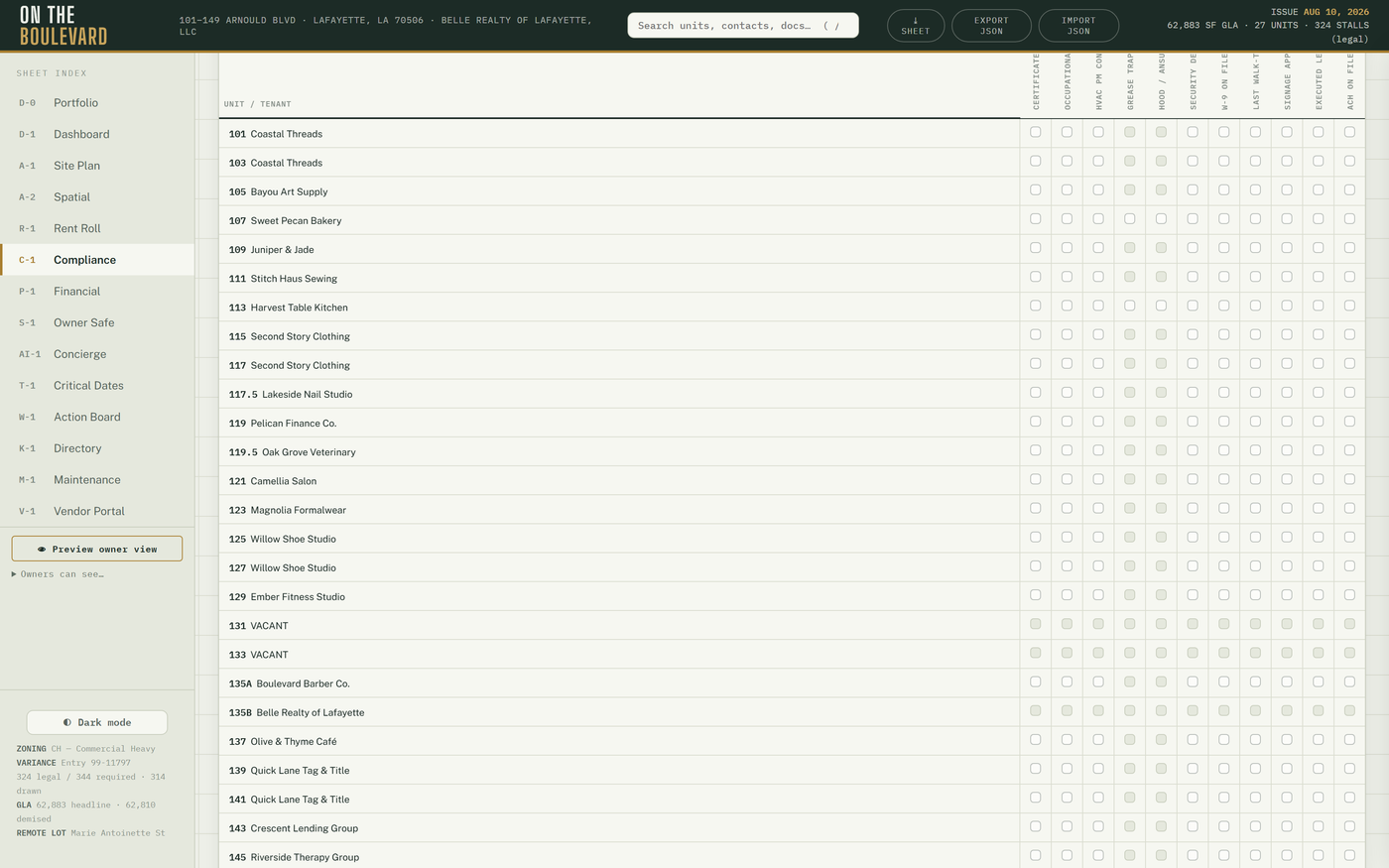
Document coverage sits on top: per occupied suite — Lease · COI · COI expires · other documents — with filter chips (gaps / no lease / no COI / lapsed / complete / all) and summary counts; click a row → drawer. Evidence means a file on the suite's documents or a matrix "On file"; a matrix Flag is a gap. Below it is the suite × requirement matrix.
How do I record that a COI is on file (or flag a gap)?
Click the cell. Each click cycles Unverified → On file → Flagged → N/A. Every flip records who, when and from → to; corrections are new flips, never edits.
How do I see who changed a cell?
Change history (hosted only) — the last 80 flips.
How do I find only the problems?
Type a suite or tenant in Find a suite or tenant, or press Flagged rows. Clear filters resets.
Who: operator (writes); owners only if ticked, read-only. Edits sync live between your
devices. Saved to: comp layer → comp_state, plus compliance_events for the history.
§3.10T-1Critical Dates
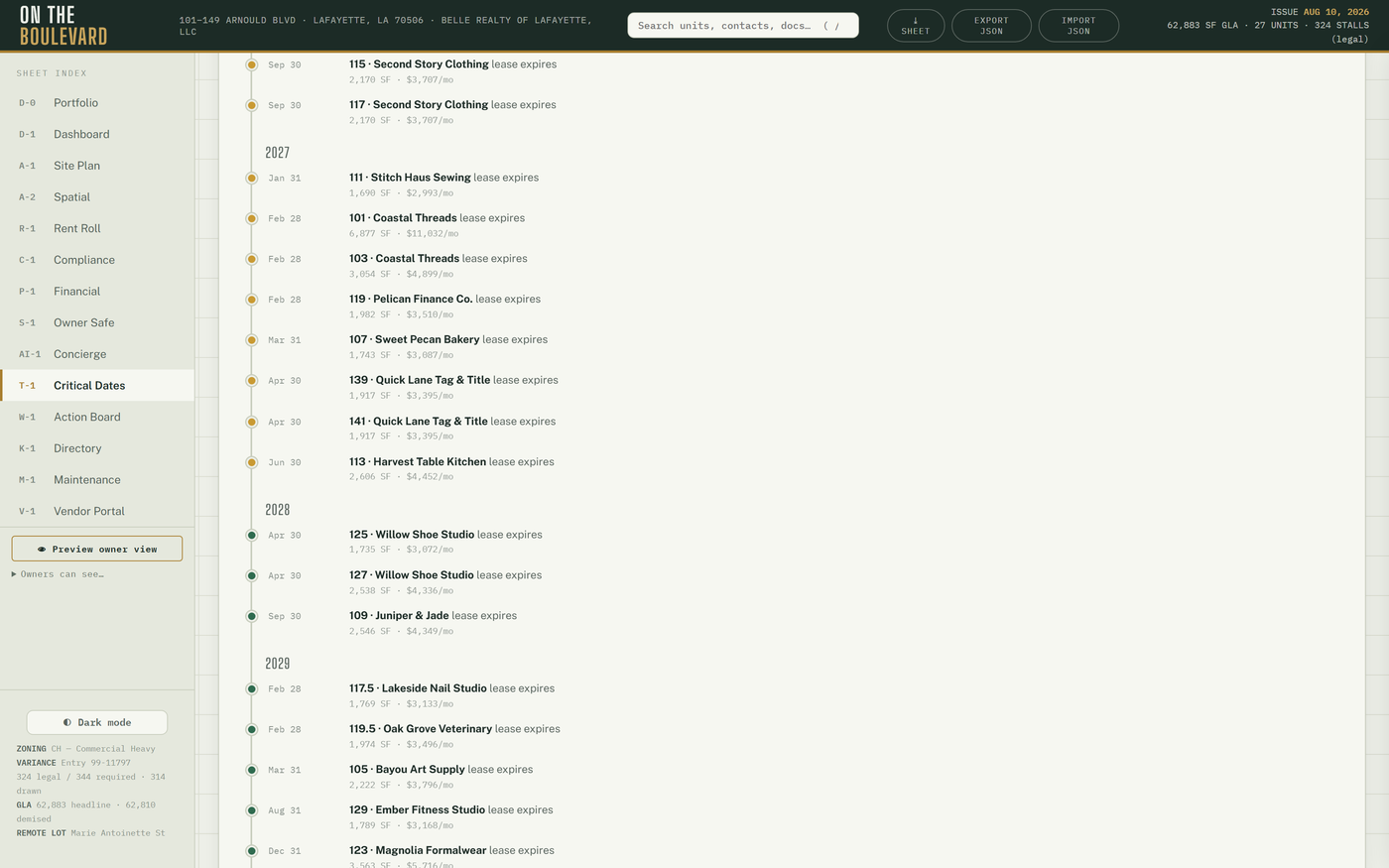
Derived — nothing to maintain here:
- Lease expiry timeline — a Gantt with a today line and bucket cards (past end · < 90 d · 90–180 d · > 180 d · term unresolved). Unresolved lease ends list under "term unresolved" by design, never guessed. Click a row (or Enter) → drawer.
- Renewal pipeline — option terms transcribed from the executed leases (reference only; verify the clause), grouped Notice window · Deadline passed · Option available · Term unresolved. Open suite → drawer.
- Instrument + governance deadlines — JD Bank servitude end, insurance renewals, premium-finance maturity, and — on the hosted build — N-1 matter deadlines, S-1 governance items, HVAC PM due dates and lease rent steps.
How do I get a date onto T-1?
Add it at its source: a governance item on S-1, a matter deadline on N-1, an HVAC contract in the drawer, a lease end through the SOT update (§6.3).
Who: operator; owners only if ticked. Saved to: nothing.
§3.11K-1Directory
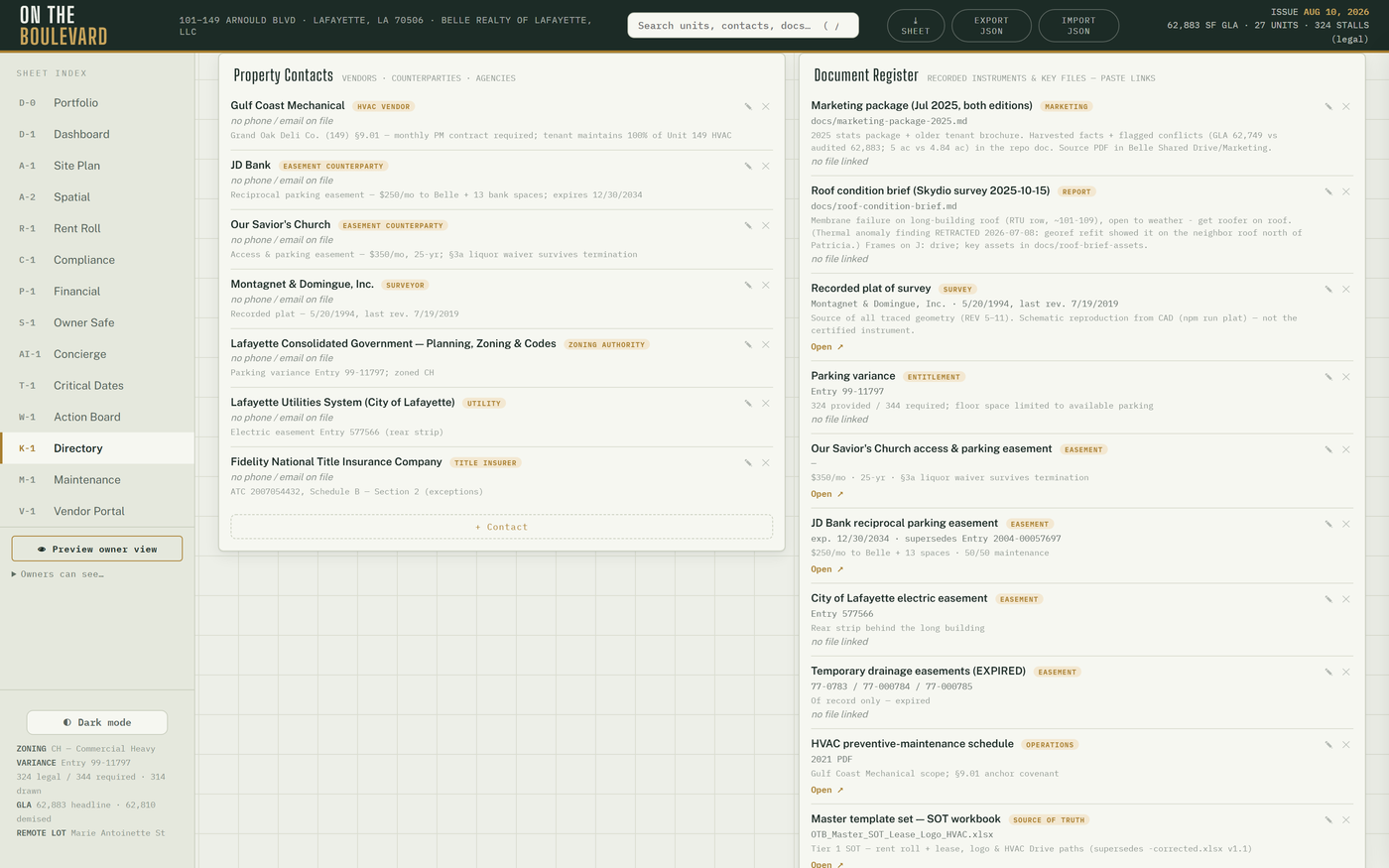
Property contacts (including the Property lines block and the insurance contacts), the document register (counterparty · amount · effective · matures · status · risk, with an Expiring · N strip on top), the 13 recorded instruments of record, property identifiers, the pylon sign register (hover links panel ↔ row; click → drawer; installed-but-unlisted faces draw brick-dashed) and the site-imagery library.
How do I add a contact or a document to the register?
+ Contact or + Document → fill → Save. On a document, 📎 Attach file; the row then shows Open 📎. ✎ edits, ✕ removes.
How do I publish the phone numbers tenants see?
Sidebar → Phone lines… (§7.1) → Save. They appear in Property lines on K-1 and in the tenant's M-1 header.
Who: operator; owners only if ticked, read-only. Saved to: contacts / documents
layers → directory_state; images → assets bucket.
§3.12X-1Lab
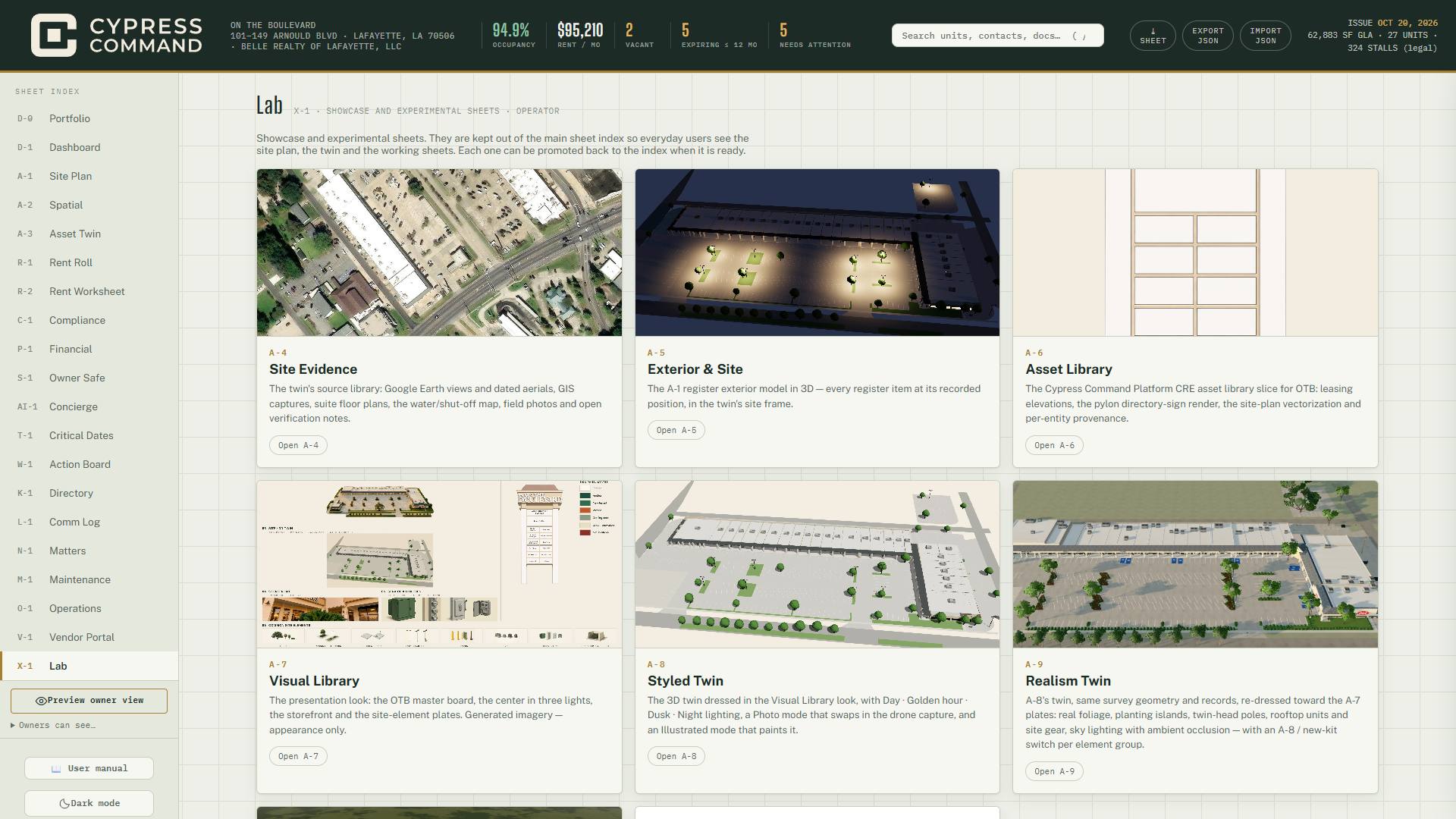
The showcase and experimental sheets, kept off the main index so everyday users see the site
plan, the twin and the working sheets. One card per Lab sheet available to you: thumbnail,
one-line description, Open A-n. Lab sheets remain real sheets — they deep-link (#styled,
#mkt…) and owners can be given them.
| Sheet | Gate |
|---|---|
| A-4 Site Evidence · A-5 Exterior & Site · A-8 Styled Twin · A-9 Realism Twin | Twin release flag + operator/owner |
| A-6 Asset Library · A-7 Visual Library · A-10 Render Studio · B-1 Marketing | Lab access only |
How do I give an owner a Lab sheet?
Sidebar → Owners can see… → tick X-1 · Lab and the Lab sheet itself.
How do I promote a Lab sheet back to the main index?
A code change: remove its id from LAB_SHEETS in src/lib/pages.js, test, merge.
§3.13The Lab sheets (A-4 to A-10)
A-4 Site Evidence
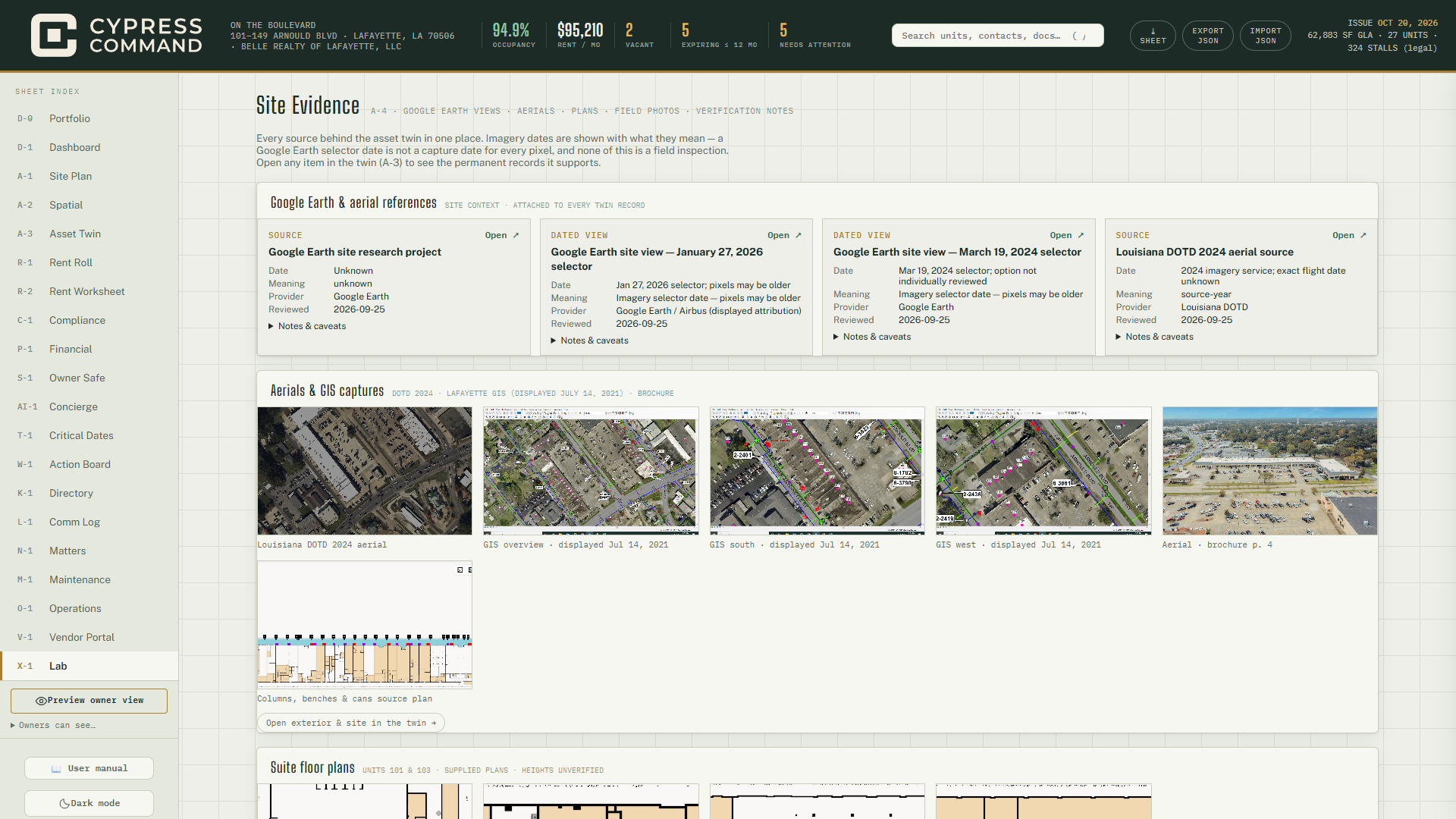
Every source behind the twin, each card stating what its date means (capture date, selector year or plan date): Google Earth views, the DOTD 2024 aerial, GIS captures, suite floor plans, the water / shutoff map, the 2021 time-clock photos and open verification notes. Open ↗ opens a source; Notes & caveats expands; "Open … in the twin →" jumps to A-3. Unverified items stay marked unverified. Read-only.
A-5 Exterior & Site
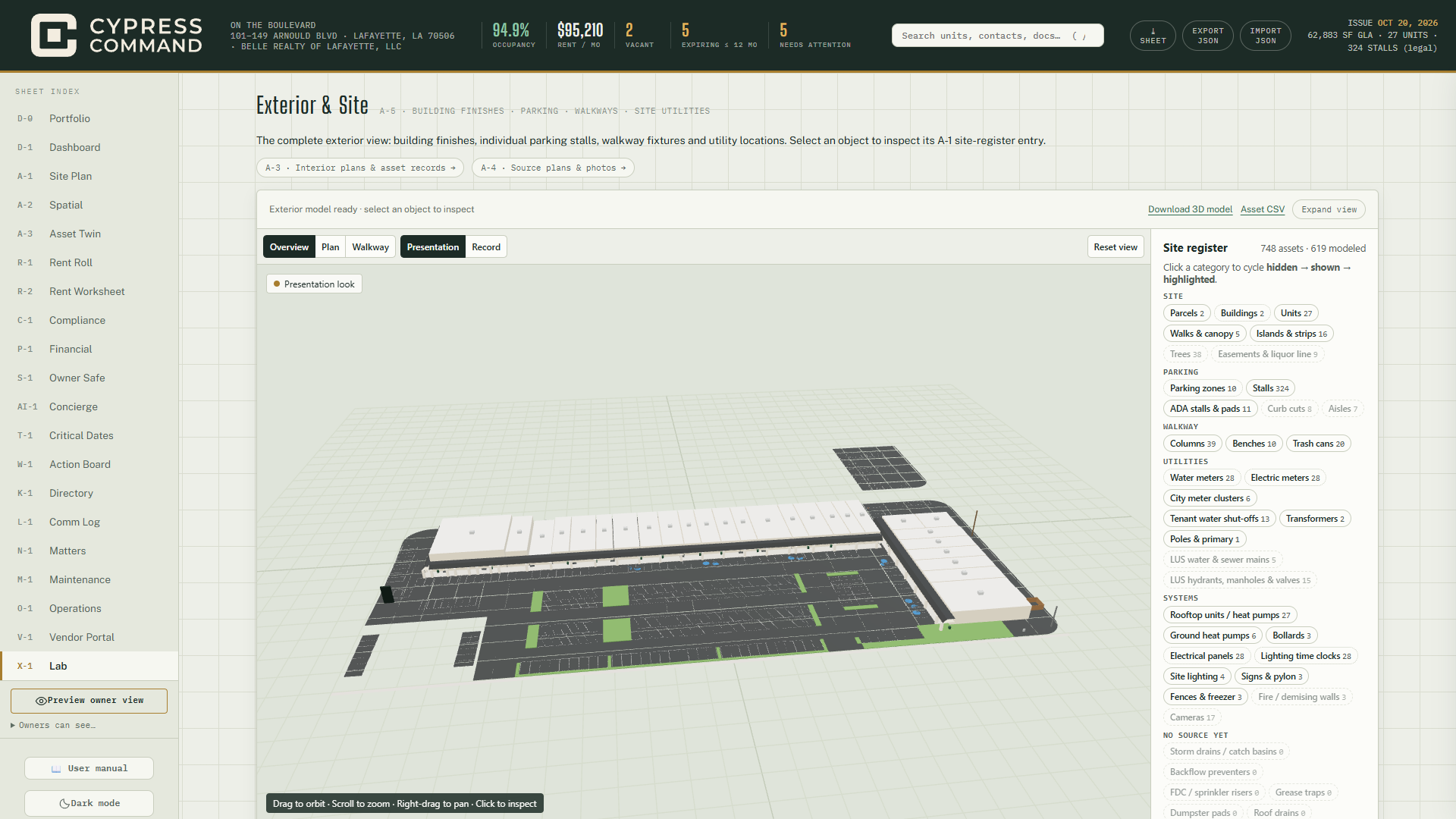
The A-1 site register in 3D — finishes, all 324 stalls, walkway fixtures, utilities. Select any object to read its register entry. Expand view (Esc closes), Download 3D model, Asset CSV, Retry model; links run to A-3 records and A-4 sources. Read-only.
A-6 Asset Library
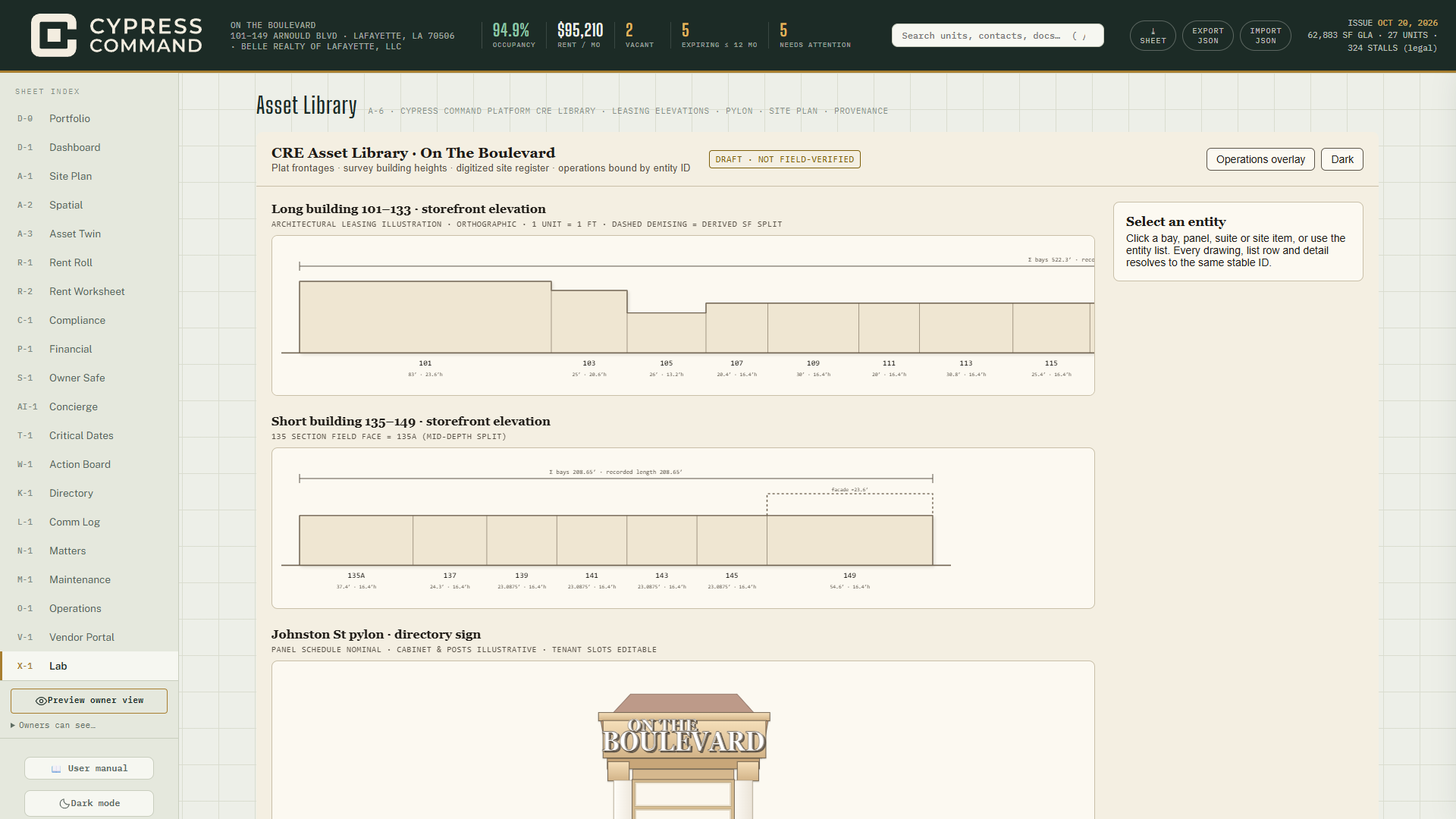
The CRE asset library for the center as one drawing set: long- and short-building storefront elevations, the Johnston pylon and the site plan. Operations overlay tints by lease state; Dark switches theme; click any bay, panel or suite for details. Utility layers show only to the operator. Marked DRAFT · NOT FIELD-VERIFIED. Read-only.
A-7 Visual Library
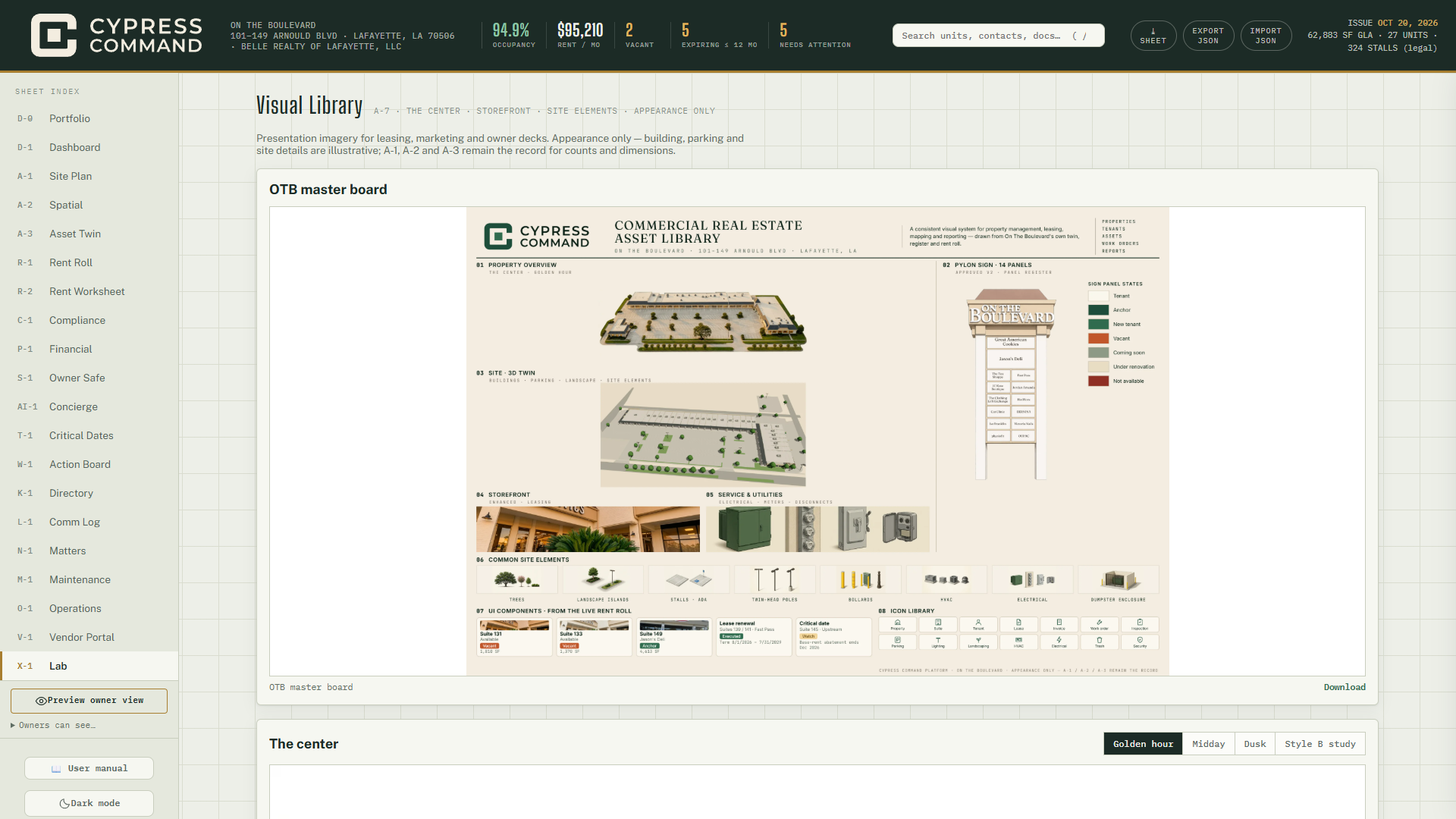
Approved presentation imagery — appearance only, never a record: the master board, The center (lighting tabs), Storefront, Storefronts by suite, Site elements. Download under any image.
A-8 Styled Twin
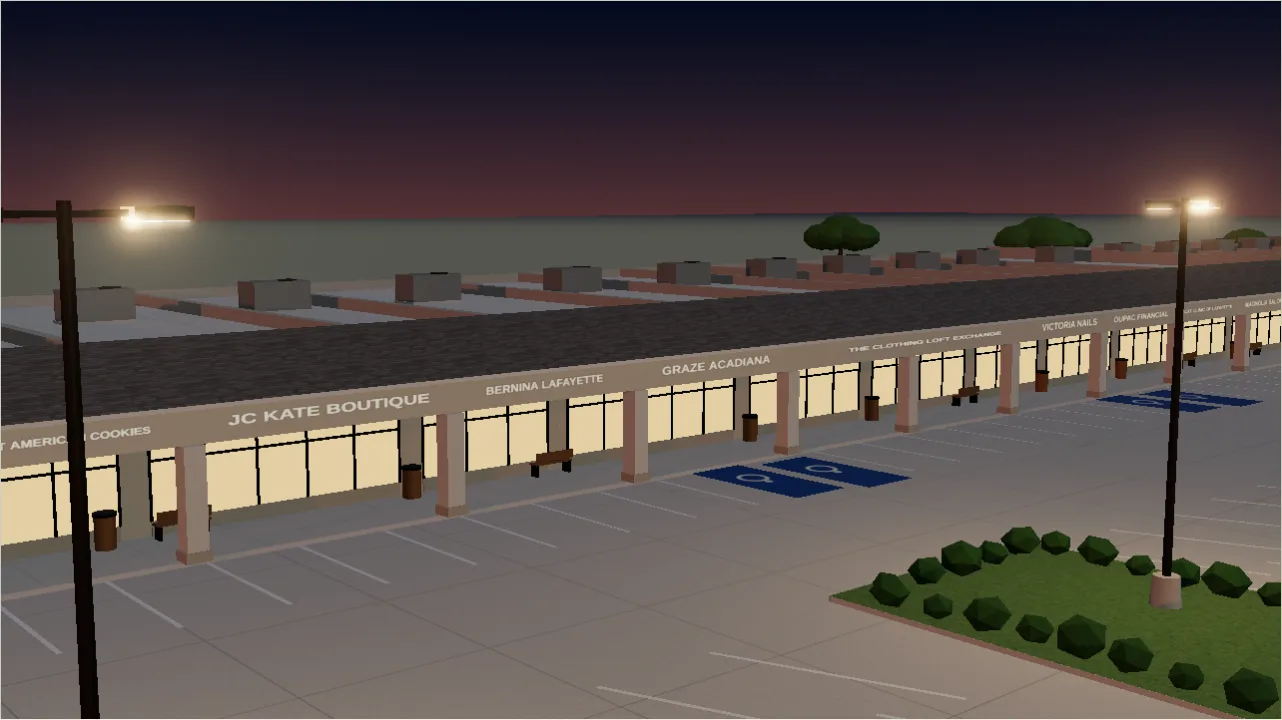
The presentation-grade model, plan-true to the CAD at survey heights, with tenant fascia signs, the lit pylon, lighting, HVAC, cameras, columns and trees.
- Lighting: Day · Golden hour · Dusk · Night.
- Toggles: Photo · Illustrated · Scans · Records · Find asset · Stalls · Gold slice · 101 · Dimensions (CAD / plat feet on the model) · one chip per time-clock lighting circuit.
- Shots: Overview · Storefronts · Breezeway · Jason's corner · Pylon · Patricia rear · Marie Antoinette rear · Johnston end.
- Reset view · Save image (PNG for a deck) · Download 3D (survey-frame .glb).
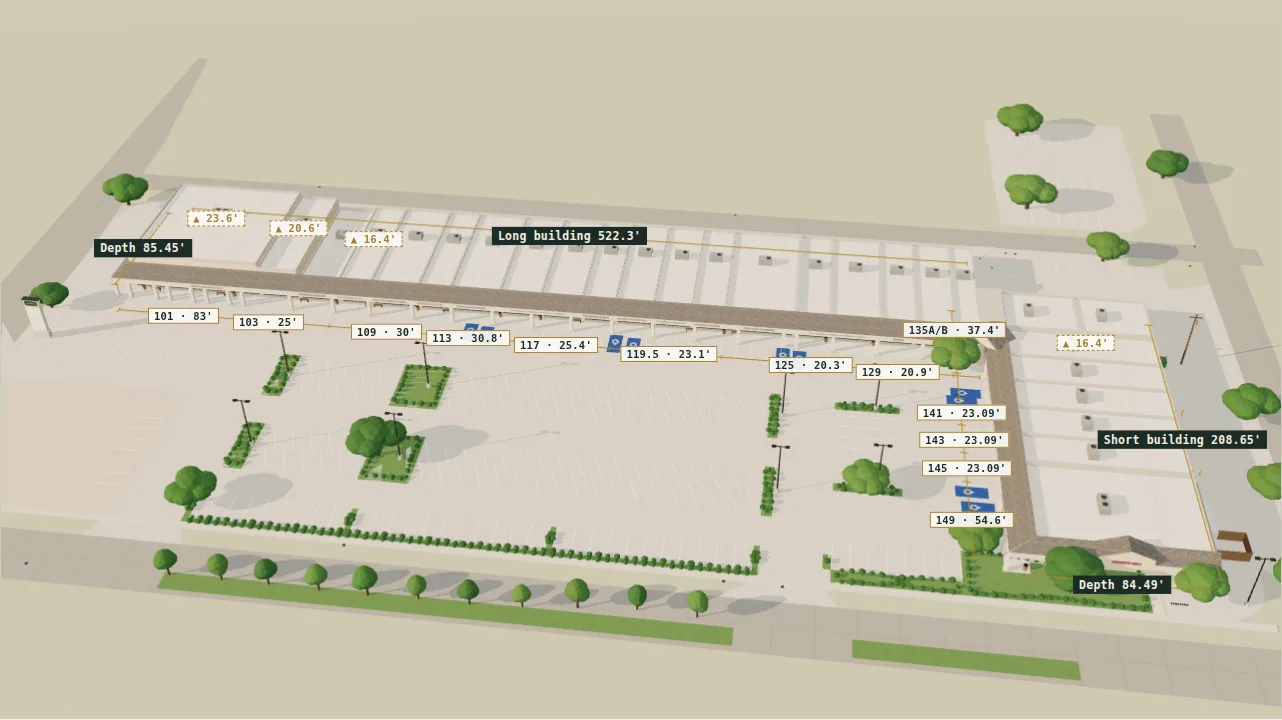
Canopy and fascia heights, pole positions and tree species are presentation choices stated on the sheet; footprints and building heights are survey.
A-9 Realism Twin
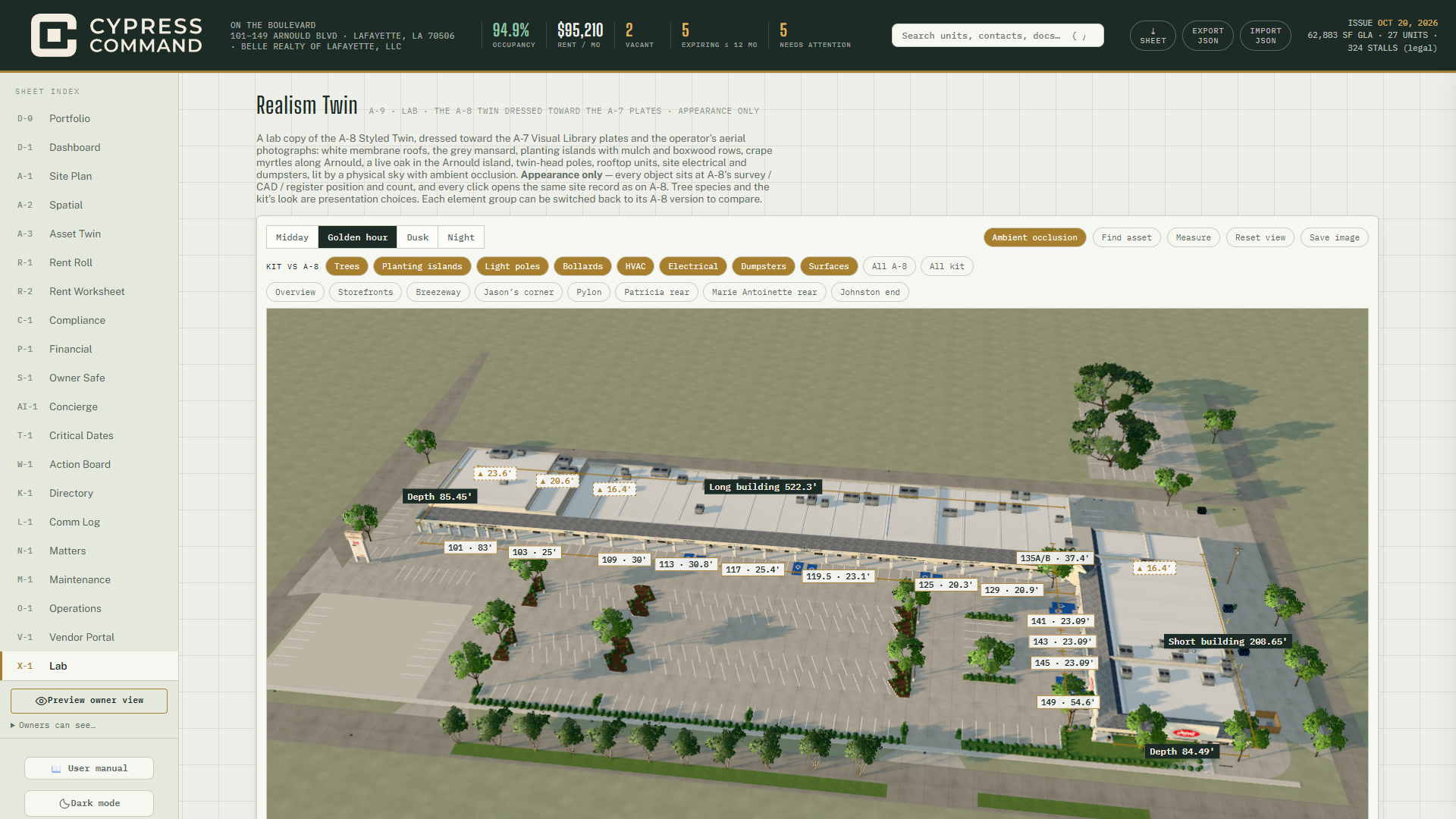
A second copy of the A-8 scene — same survey, CAD and register geometry, same records — re-dressed with a photoreal kit: physical sky, exposure, fog, ambient occlusion and bloom. A-8 is untouched. Appearance only; it writes nothing.
- Lighting: Midday · Golden hour (default) · Dusk · Night.
- Ambient occlusion (on by default) · Find asset (searchable site-records index — the
same records as A-8) · Measure (draw calls and triangles against plain A-8) · Reset
view · Save image (
On-The-Boulevard-realism-twin.png). - Kit vs A-8 toggles per group — Trees · Planting islands · Light poles · Bollards · HVAC · Electrical · Dumpsters · Surfaces — with All A-8 / All kit.
- Shots: the same eight as A-8.
- Click any fixture → compact inspector (ID, type, suite, position grade and source, notes, photos, linked records) with Show in model and Open lease record / Open HVAC record (→ drawer).
How do I make a hero image for a deck?
A-9 → Golden hour → a shot (Overview or Storefronts) → Save image. For a print-resolution still, take it from A-10 instead.
A-10 Render Studio
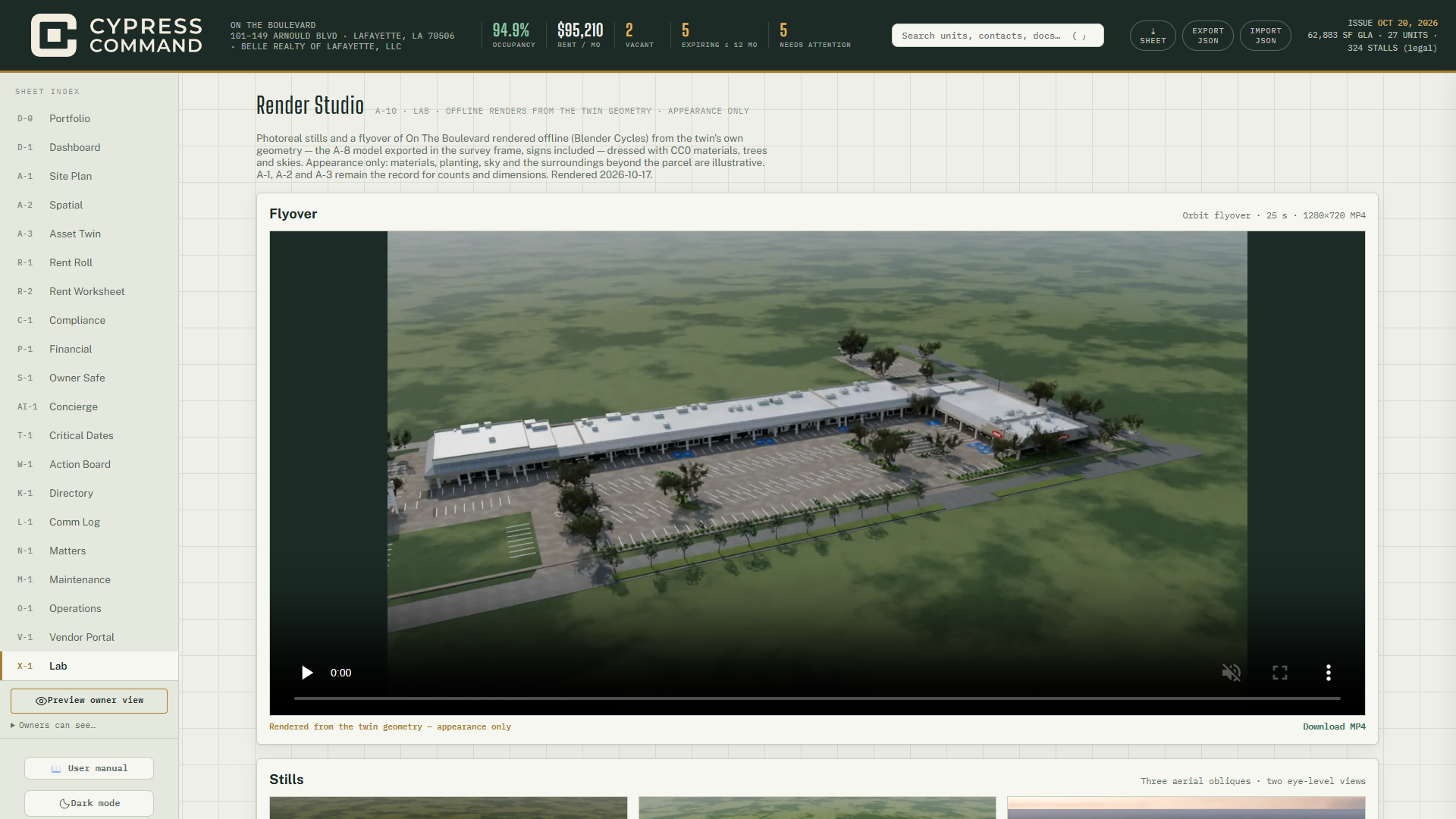
Offline Blender Cycles renders of the A-8 geometry, signs included (rendered 2026-10-17; every item is labelled "Rendered from the twin geometry — appearance only"):
- Orbit flyover · 25 s — 1280×720 MP4 with a player and Download MP4.
- Stills — Aerial golden hour · Aerial midday · Aerial dusk, lights on · Storefronts eye level · Jason's Deli corner eye level. Click → 2560-px lightbox; Download 2560.
Not twin-gated. Writes nothing. New renders are produced offline by
tools/render-studio/render_otb.py and committed.
Who (A-4 to A-10): see the X-1 table above. Saved to: nothing.
§3.14P-1Financial
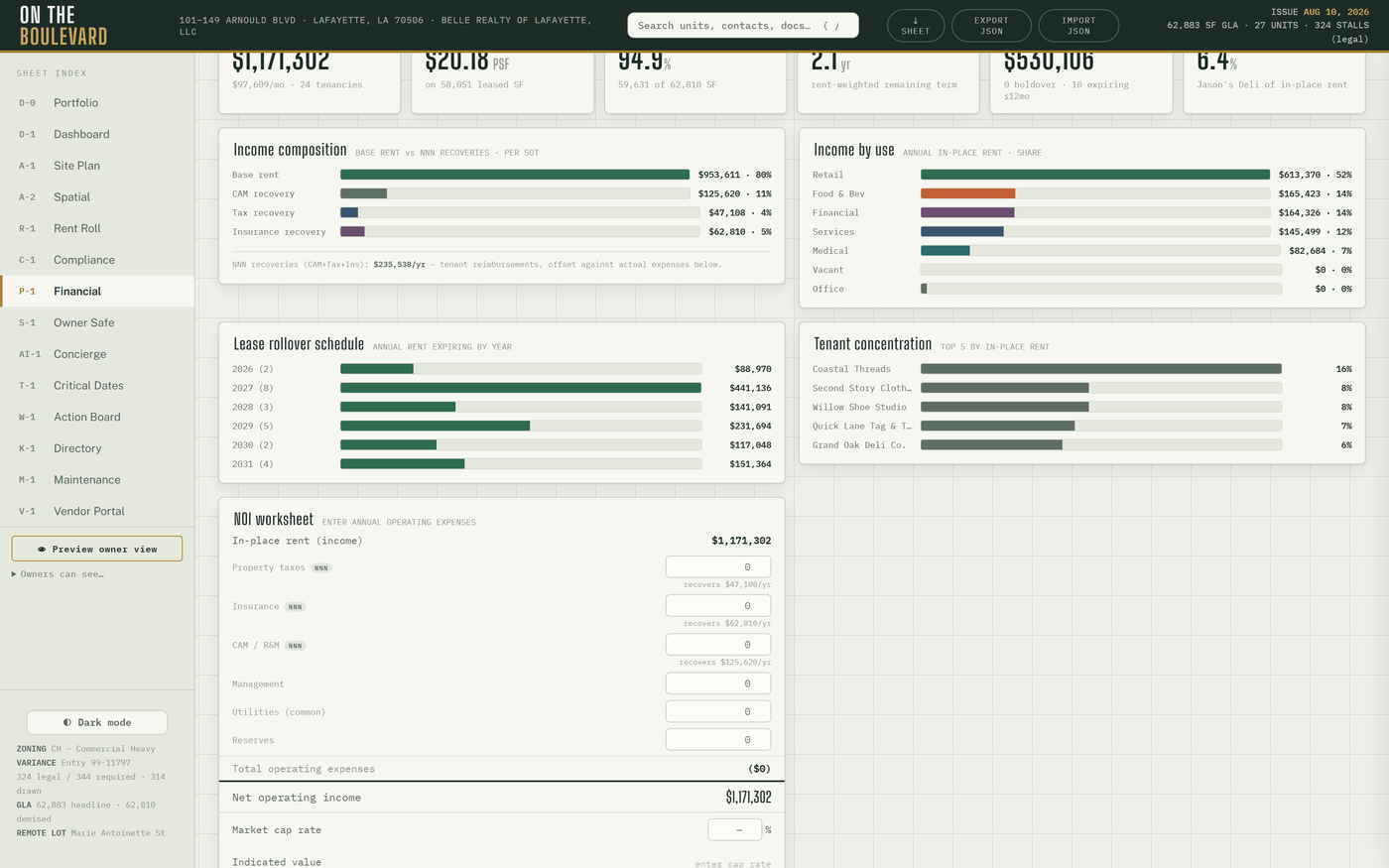
KPIs: in-place rent, effective rent, occupancy, WALT, known near-term rent, anchor concentration. Then budget vs actual, the composition charts, the NOI worksheet, collections, payment history, the tenant health register and the CAM reconciliation. P-1 needs a signed-in owner or operator session; otherwise it shows "Private financial data unavailable".
Budget vs actual
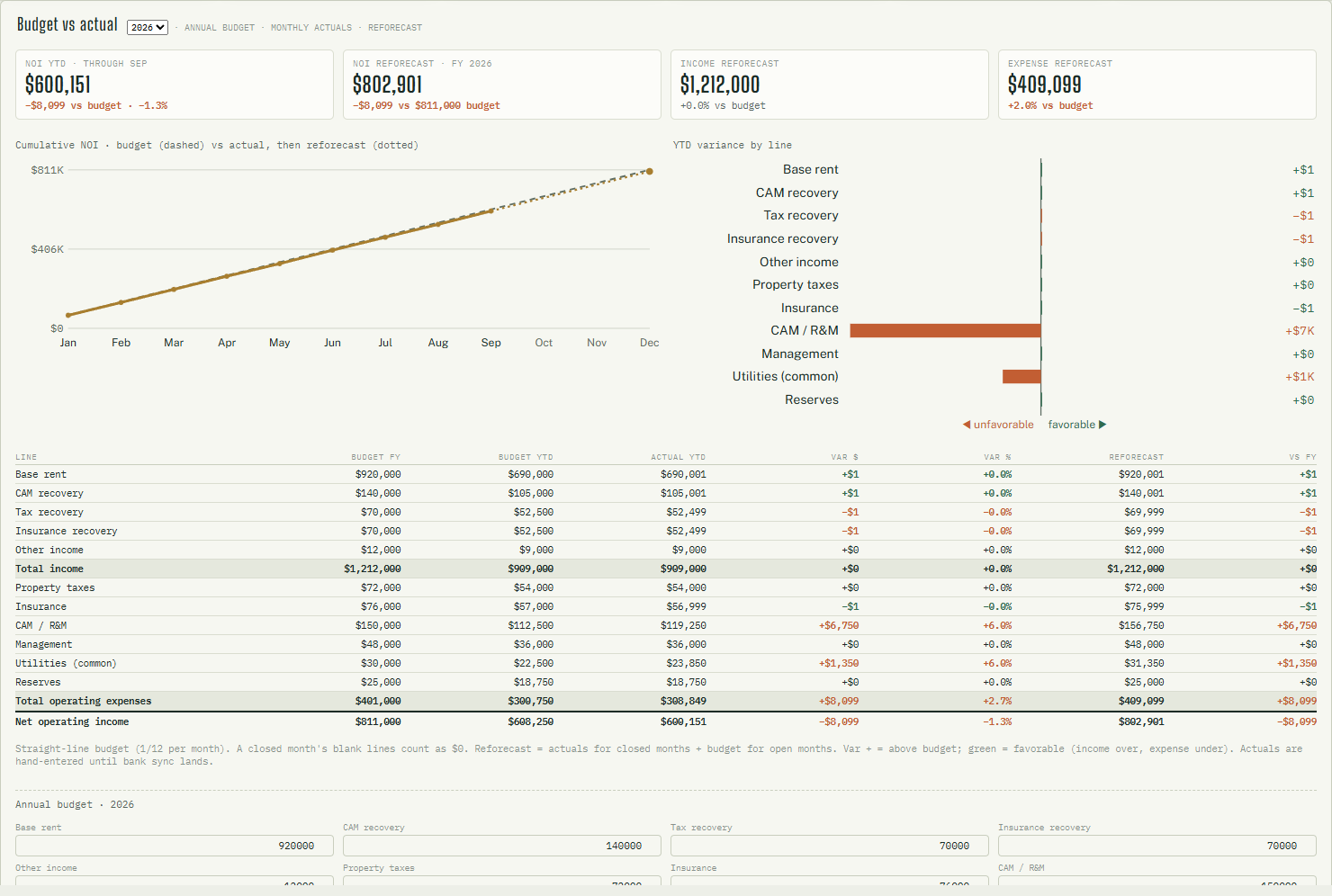
Pick the year (last · this · next). Eleven lines: income — Base rent · CAM recovery · Tax recovery · Insurance recovery · Other income; expenses — Property taxes · Insurance · CAM / R&M · Management · Utilities (common) · Reserves. The budget is straight-line (1/12 a month).
- KPIs: NOI YTD (through the last closed month) · NOI reforecast FY · Income reforecast · Expense reforecast, each against budget.
- Charts: cumulative NOI — budget dashed, actual solid, reforecast dotted — and YTD variance by line (◀ unfavorable · favorable ▶).
- Table: Line · Budget FY · Budget YTD · Actual YTD · Var $ · Var % · Reforecast · vs FY.
- Reforecast = actual YTD + budget for the open months. Green = favorable (income over, expense under). Skipped months are listed under "Months not entered".
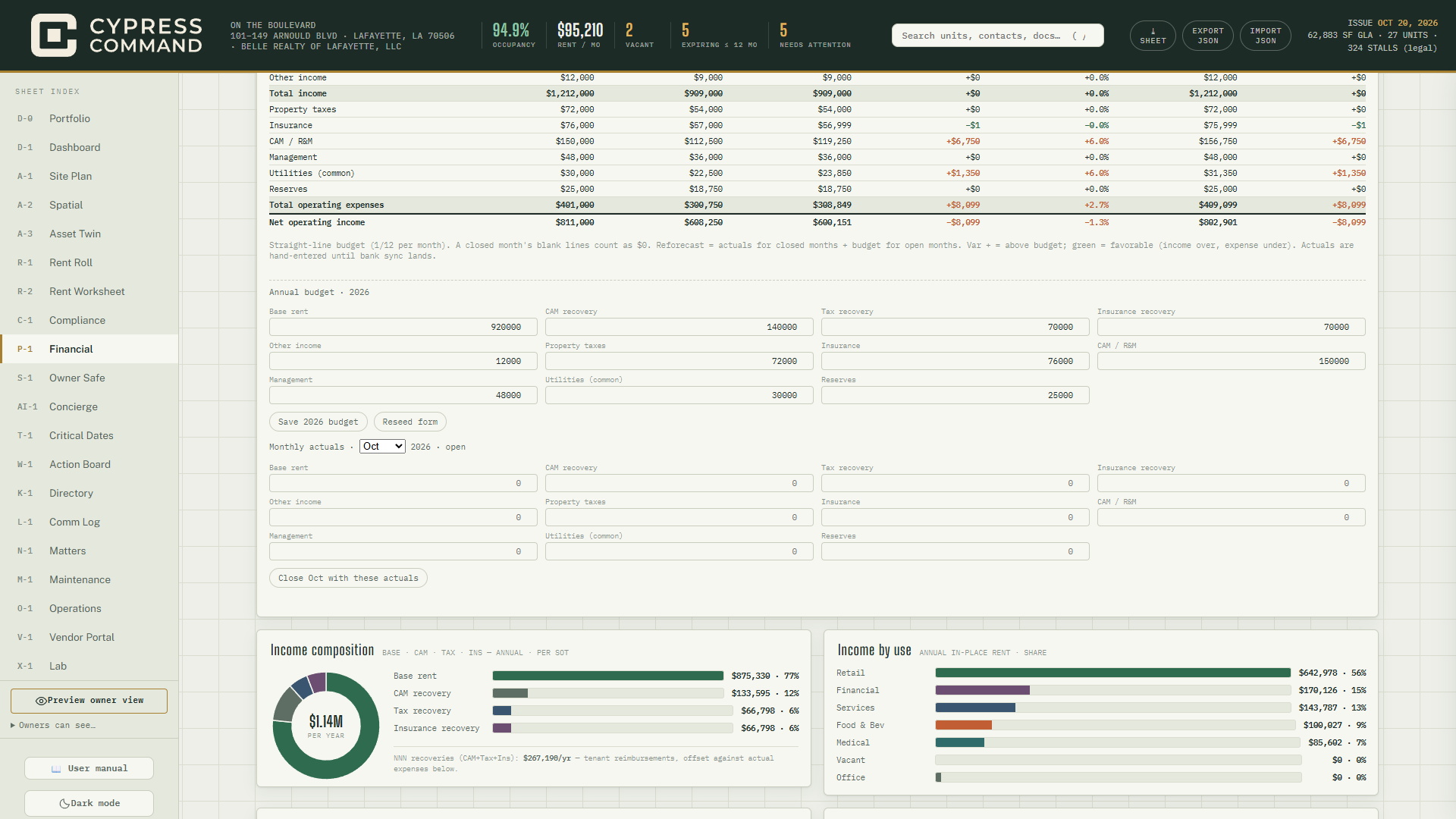
How do I set the year's budget?
- P-1 → Budget vs actual → pick the year.
- Under Annual budget · YYYY, the form is seeded from the rent roll and the NOI worksheet ("draft, seeded") — nothing is saved yet. Adjust every line.
- Save YYYY budget. Reseed form later refills the form from current data without saving.
How do I close a month?
- Under Monthly actuals, pick the month (closed months show ✓; future months are disabled — a month can be closed only once it has started).
- Enter each line from the bank and the books. A blank line in a closed month counts as $0.
- Close ‹Mon› with these actuals. To correct it later: change the figures → Update ‹Mon›. Reopen ‹Mon› (confirm) removes that month's actuals and the reforecast goes back to budget for it.
How do I see the year-end NOI forecast?
Read NOI reforecast · FY and the dotted line. It moves only when you close a month or change the budget.
NOI worksheet and value
Enter annual operating expenses (Property taxes · Insurance · CAM / R&M · Management · Utilities · Reserves) → NOI → Market cap rate % → Indicated value. A revenue → NOI waterfall (GPR and vacancy labelled ESTIMATES) and a ±100 bp cap-rate sensitivity strip follow. A blank cap rate shows the 2019 appraisal rate as a placeholder — never stored.
Collections, payment history, tenant health
Collections & aging (hosted): the month's collected vs charged and per-unit buckets ≤ 30 · 31–60 · 61–90 · 90+. Payment history: the predecessor 13-month record. Tenant health: the full register behind D-1's Tenant Watch — every occupied suite, with Avg score · Tenants · At risk · Watch · Flagged tiles; click a row → drawer. Same owner-sharing switch as D-1.
How do I run the year-end CAM reconciliation?
- CAM / NNN reconciliation → Reconcile year (this year or the two before).
- Fill Prior-year actuals · YYYY (the six expense lines) — without it lease caps cannot apply. Leave % CAM gross-up on "auto" unless you have a reason.
- Read the per-tenant table: Billed · Actual · Capped · True-up (+ owes, − credit).
- ⤓ on a row prints that tenant's reconciliation statement (PSF breakdown, cap line, methodology). Suites with unknown PSF print "Not determinable" rather than a guess.
The Excel proforma (npm run proforma) remains the owner-overridable underwriting model.
Who: operator; owners by default — owners see every figure, chart and table, can change the
year shown, but never see the budget or actuals entry forms. Saved to: budget, actuals, opex,
cap rate and prior-year actuals → financials layer → layer_settings.
§3.15S-1Owner Safe
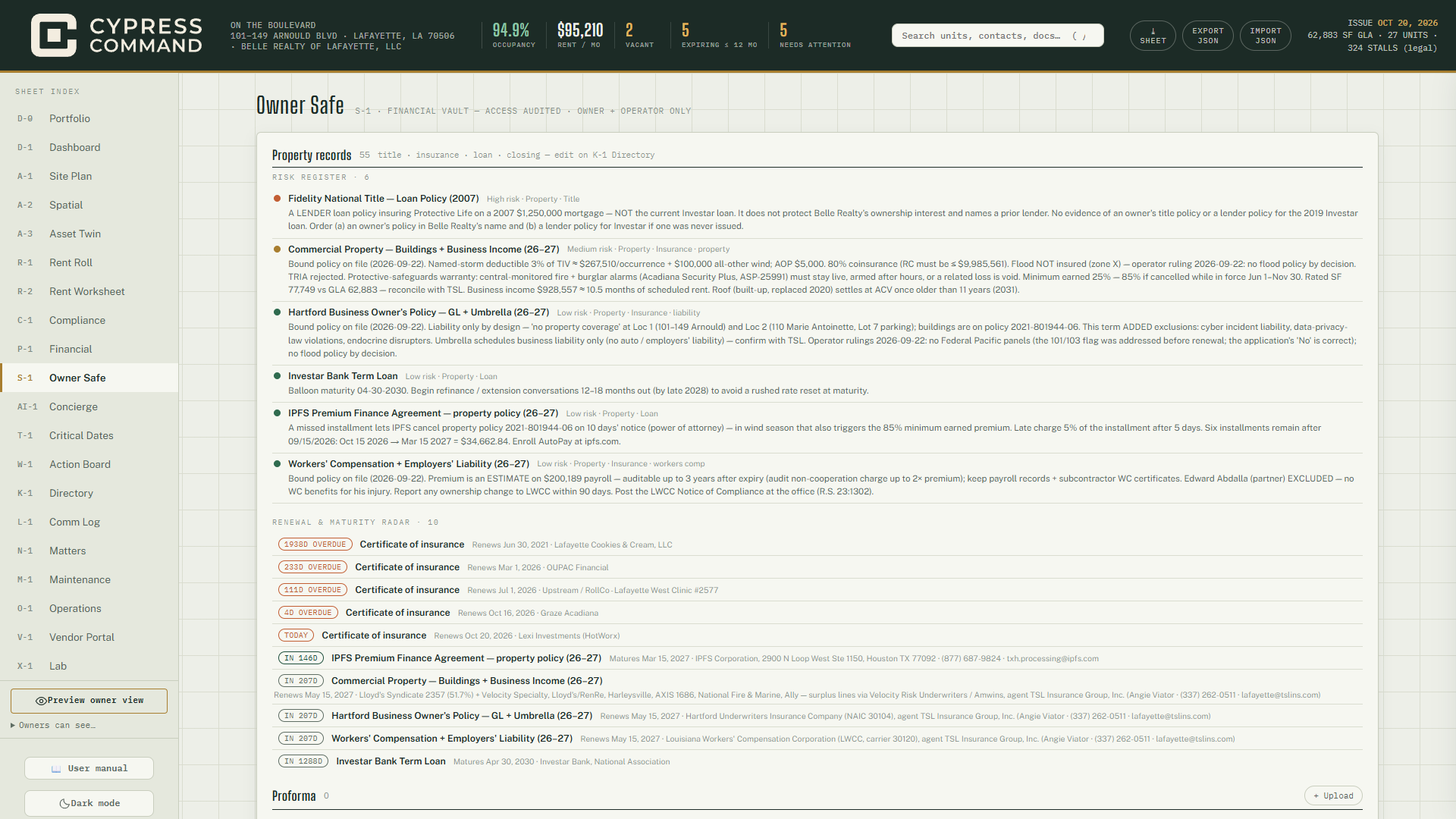
- Property records — a risk register (worst first) and a Renewal & maturity radar (soonest first), derived from the K-1 register and suite documents: the 2026–27 insurance program (renewing 2027-05-15), the premium-finance agreement (maturing 2027-03-15), the loan, the lender title policy, the recorded instruments. Edit on K-1.
- Quarterly reports — ⤓ Board · ⤓ Lender · ⤓ Stakeholder for the last complete quarter.
- Diligence package — ⤓ Build package (lender / buyer data room · SHA-256 manifest).
- Governance — entity and covenant items with deadlines (feed T-1).
- Folders — Proforma · Leases · Tax · Insurance · Banking · Other.
- Recent access — the last 30 views, uploads and deletes, with who and when (operator only).
How do I file a document in the Safe?
Folder → + Upload → pick the file. Open 🔒 opens it (logged); ✕ removes it (confirm).
How do I build a diligence package for a lender or buyer?
In the app: S-1 → ⤓ Build package. The browser fetches every Safe file (each fetch
is logged as a view), adds vendor COI dates, and downloads OTB-Diligence-YYYY-MM-DD.zip:
| File | Contents |
|---|---|
00-README.md |
What is inside, what could not be read |
01-rent-roll.csv / .md |
The rent roll |
02-property-facts.md |
Parking, JD Bank, title exceptions, easements, A-1 revision, survey note |
03-insurance-coi.md |
Insurance program and vendor COIs |
04-owner-safe-index.csv |
Index of the Safe |
documents/owner-safe/… |
Every Safe file by folder |
MANIFEST.json, SHA256SUMS |
Hash of every file, so the recipient can verify nothing changed |
Nothing is stored on the server. Unreadable Safe files are listed in the README.
From the command line (adds the plats and every document the rent roll cites):
npm run diligence-package
Output: export-diligence/OTB-Diligence-YYYY-MM-DD/ (git-ignored) and a copy to
G:\My Drive\00 OTB\Diligence-Package\. Flags: --date YYYY-MM-DD, --out DIR,
--no-drive, --no-docs. Safe files and COIs are pulled only when the Supabase service
credentials are present for the run; otherwise the README says they were not pulled.
How do I track a covenant or entity filing?
+ Governance item → kind, Title, entity, ref #, due date, annual if it recurs, notes → Save. Mark ✓ satisfied or waive; reopen if needed; ✕ deletes (confirm).
Who: operator (writes); owners read and can download reports and the package; vendors and
tenants are sealed out at the database. Saved to: private safe bucket + safe_log;
governance → governance_items.
§3.16AI-1Concierge
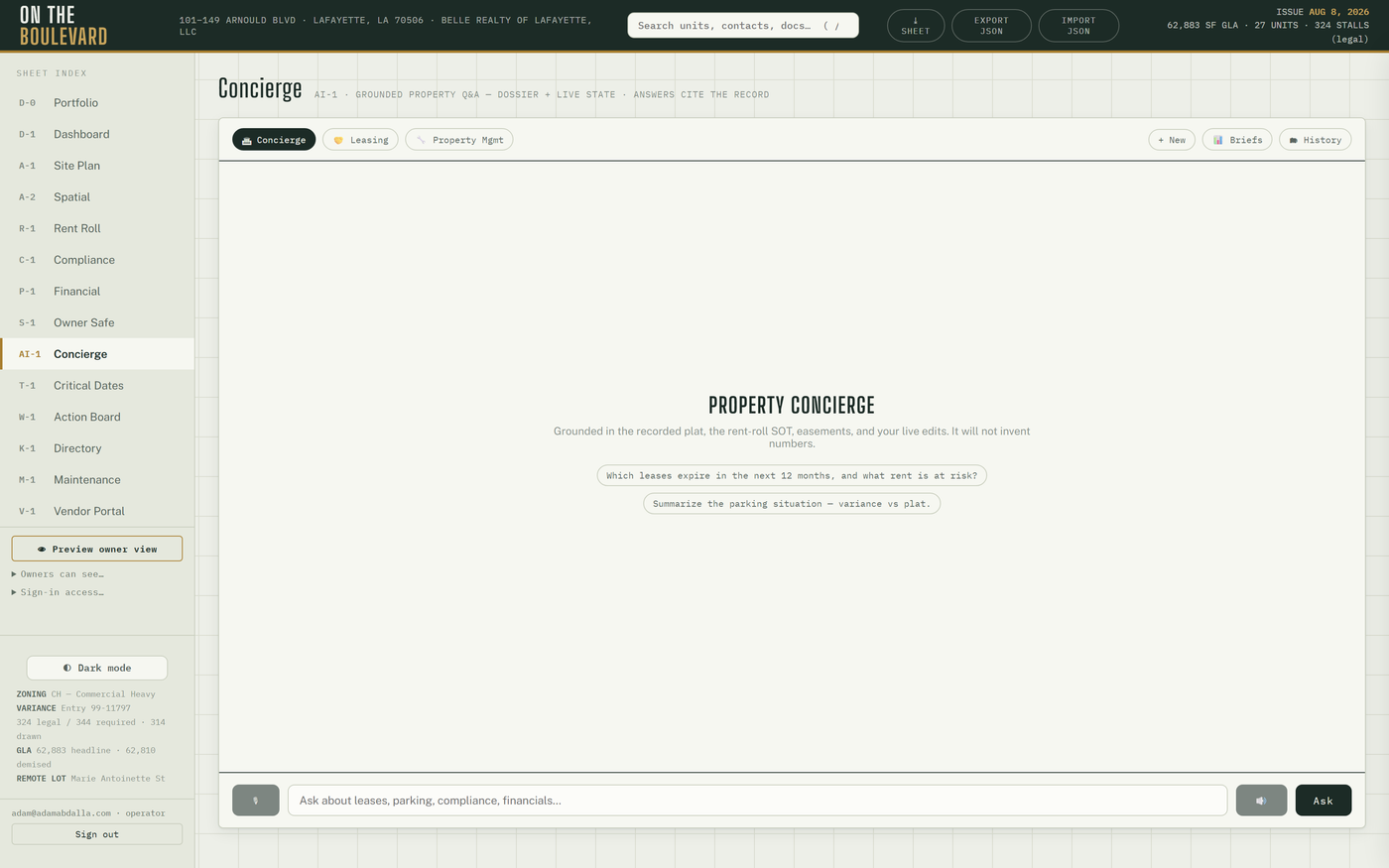
Three agents — 🏛 Concierge (property Q&A), 🤝 Leasing, 🔧 Property Mgmt — grounded in the property dossier and live state, each with suggested questions.
- + New starts a conversation; 🗂 History reopens any of the last 40; conversations resume after reload.
- 🎙 dictates (Chrome / Edge); 🔊 speaks replies aloud (also per reply).
- Numbers are guardrailed: once a calculation is involved, every figure in a reply must trace to the deterministic engines or the reply is replaced with the engines' summary.
- 📊 Briefs — the monthly owner-brief archive; Open 🔒 renders any month.
- 📦 Lead SMS (Leasing) — copies a ready text with the vacancies and the /leasing link to your clipboard. You paste and send it.
- 200 messages a day across the property.
How do I run a renewal-vs-replace comparison?
🤝 Leasing → ask, e.g. "compare retaining at $17 vs replacing at $20 with 3 months free and $10 TI, 5-yr term, 1,917 SF, 7.5% cap".
How do I check a capital decision?
🔧 Property Mgmt → "should I spend $45K on an RTU replacement with a $120K reserve, $30K/yr contributions, installed 2008, 15-yr life?"
How do I draft a lease proposal?
🤝 Leasing → ask for a proposal; it collects the terms, then produces a DRAFT proposal (and, if asked, an internal owner summary) as a card with Open 🔒 (48-hour link) and ✉ Email (a pre-filled draft — you send it). Operator only; every document is DRAFT-stamped and subject to legal review.
Who: operator; owners only if ticked (they can ask questions; lease assembly is refused for
them). Hosted only. Saved to: chat_threads / chat_messages; proposals → documents
bucket.
§3.17The voice line
- Published number (337) 769-1554 (the office line) forwards to the platform. The agent greets "Thanks for calling On The Boulevard. This call may be recorded." and asks whether the caller is calling about a space to lease or about an existing suite, then handles either on the same call. No live transfers.
- Existing suites: 24/7 triage per the SOP. Emergencies (leak, electrical, break-in, sewer) dispatch and notify after hours without waking you for permission; real work orders are filed into M-1; eviction timelines are never discussed.
- Leasing: takes name and number, quotes only the approved range, screens against
exclusive-use conflicts, books tours (18-hour lead, Tue / Thu defaults; double-booking is
impossible). Truthful booking is enforced — the agent cannot claim a booking the tool did
not make, and a leasing call that ends without one opens a
voice-lead:thread so no lead drops. - A dedicated leasing line also exists for campaigns; it is never printed.
- Every call is recorded, summarized at hang-up (intent · urgency · unit · caller · callback · follow-up — nothing invented), written to L-1 as a call card, mirrored to AI-1 History, pushed to opted-in phones and e-mailed to the owners when mail is configured.
- The agent can send the leasing package (e-mail now; text once A2P is approved); it may claim only the legs that actually went out.
- Calls left unfinalized ≥ 20 minutes are swept into L-1 by the daily cron.
Runbooks: docs/a3-voice-runbook.md, docs/voice-call-records-runbook-2026-09-18.md.
Line assignments are set in the sidebar Phone lines… panel.
§3.18AI-1History — the daily scan
See Part II step 5. Each condition opens exactly one thread, ever: renewal windows at 180 days,
holdovers, occupancy dips, camera pipeline quiet 36 h, unbooked voice leads, unmatched ACH
(ach-unmapped:), failed ACH (ach-fail:), unassigned work orders (2 days; 1 for emergencies),
web tour requests and the "SOPs overdue" digest.
§3.19The Ledger in practice (drawer → Ledger)
- Monthly rent charges post themselves on the 1st (idempotent).
- ACH payments post themselves. Each unit has a reusable Stripe payment link (ACH only;
roster:
docs/stripe-payment-links-2026-08.md, copy on Drive). You send the link; when the payment settles the ledger gains anach:<id>entry. Unmatched or failed payments open an AI-1 thread instead. - Late-fee chips: past the 5-day grace a Post $X chip appears ($100 + $25/day). It posts only when you click it. A lease with different late terms → flag it.
- Types: Payment received · Charge · Credit · Adjustment · NSF · Write-off.
- Prior payments · AC holds the predecessor's 13 months; the July 2026 rows were bulk-entered — never trust their paid-at dates.
- When a unit's rent changes, re-run
tools/stripe-payment-links.mjsfor that unit and retire the old link in Stripe.
§3.20W-1Action Board
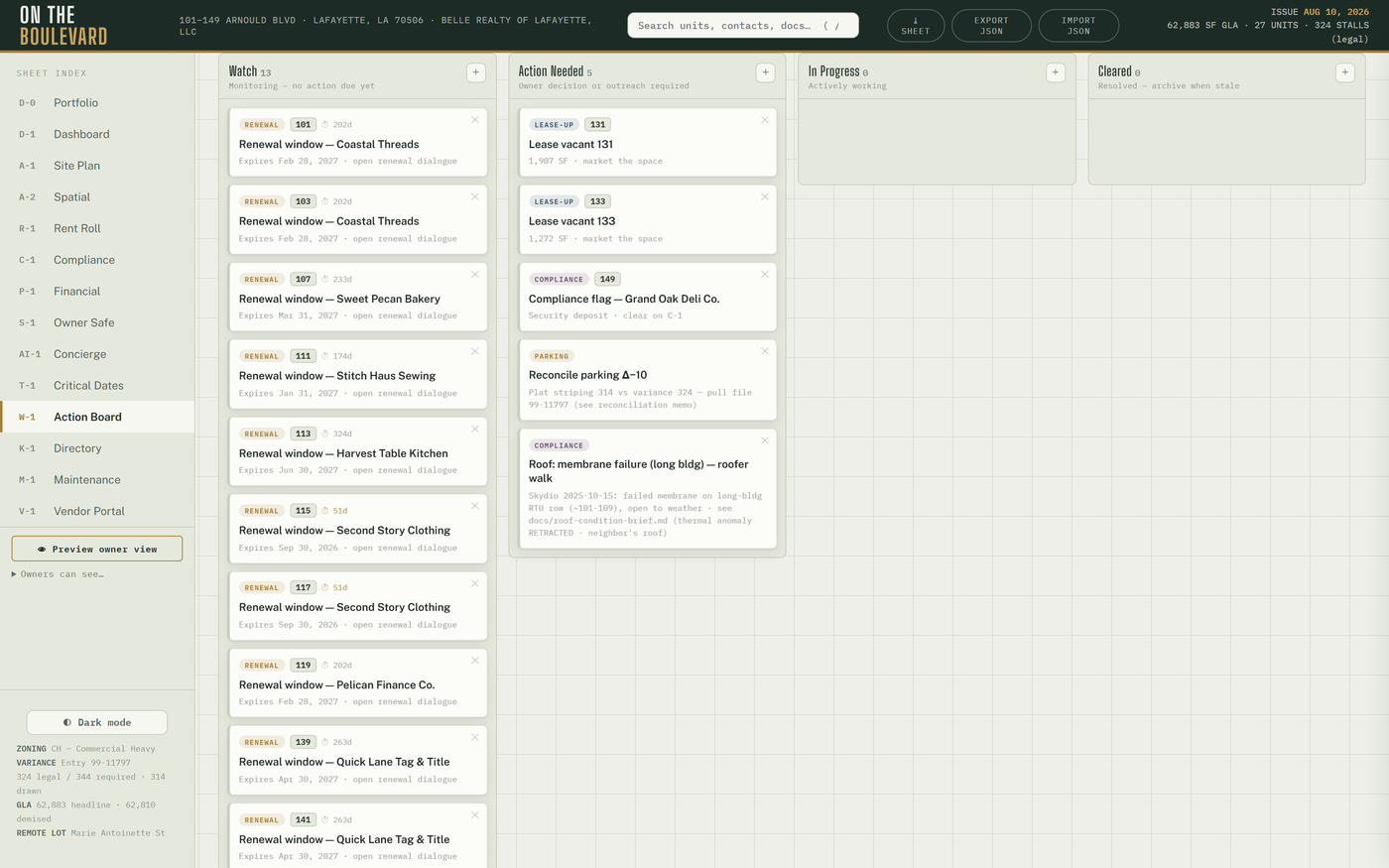
Four lanes — Watch · Action Needed · In Progress · Cleared. Cards seed themselves from live facts: holdovers, renewals ≤ 12 months, vacancies, compliance flags, fixed obligations (149 HVAC, exclusives, JD Bank, parking, roof) and open M-1 work orders. The seed recomputes on every render, so an archived card returns only if its fact returns.
Above the lanes, the Leasing Pipeline strip (PROSPECT → TOUR → LOI → LEASE DRAFT) shows the deals table; voice and web leads land here on their own.
How do I move or clear a card?
Drag it to another lane. ✕ archives it; restore N archived brings archived cards back.
How do I add a reminder card?
+ on a lane → type the title → Enter (Esc cancels).
How do I log a new prospect?
+ Deal → Prospect (required), business, unit, e-mail, phone, proposed rent, notes → Save. Change the stage from the row's select; deal cards follow it (they cannot be dragged).
How do I send a prospect the leasing package?
On the deal row → 📦 Package (shown when the deal has an e-mail or phone) → confirm. Same sender as L-1 (§3.24). ✕ deletes a deal (permanent).
Who: operator; owners only if ticked. Saved to: lanes and custom cards → actions layer →
board_state; deals → deals.
§3.21N-1Matters
Long-running affairs as cards — kind (lease negotiation, claim, permit, dispute, project, general), status, deadlines, correspondence and attachments. Filters: Open · Monitoring · Closed · All.
How do I open and run a matter?
- + New matter → title, kind, deadline (optional), summary → Open matter.
- On the card: ✎ Edit (title, kind, status, summary, deadline, deadline note); + Meeting note (mirrors into L-1); 📎 Attach file.
- Close matter when done — it drops off T-1; Reopen if it comes back.
Who: operator; owners read cards and open attachments. Hosted only. Saved to: matters;
notes → comm_log; files → documents bucket.
§3.22O-1Operations
The procedures (SOP) library: categories → procedures → steps, each with due-today / overdue / streak state. The daily cron creates each scheduled procedure's current occurrence and opens one "SOPs overdue" digest thread keyed to the newest lapse.
How do I record that I did a procedure?
Expand it → optional Completion notes and min → ✓ Complete (closes the oldest open occurrence).
How do I write a new procedure?
+ procedure on a category → title, frequency, est. minutes, description, assignee e-mail → Save → + Step for each step (#, title, checkpoint, instructions, warning → Save step). New category: name + icon → + Add category.
How do I clear a stale overdue?
✕ clear on the occurrence (confirm); the cron recreates it next period. Deactivate retires a procedure.
Who: operator; owners read-only. Hosted only. Saved to: the sop_* tables.
§3.23B-1Marketing (Lab)
Every output is generated from the source of truth on the fly — a flyer can never disagree with the rent roll — and rates are never printed.
- Availability flyers — ⤓ Flyer per vacant suite.
- Center overview — ⤓ Overview sheet (stats, logo wall, site plan, availability).
- Tenant cards — pick unit and headline → ⤓ Card (1080-square co-marketing card).
- Pylon sign — the roster and tenants without a face.
- Photo library — + Photos; ★ sets a suite's hero image; ✕ removes.
- 360° tour — + 360° panorama / + Hero still per vacant suite → Publish manifest → /tour → Open the microsite ↗.
Outputs open in a new tab; print or save as PDF there. Insta360 settings and upload steps:
docs/marketing-b1-and-tour-2026-09-18.md. QR codes for /leasing and /tour: public/qr/.
Who: operator acts; owners read. Saved to: hero picks → marketing layer; photos →
assets bucket; tour media + manifest → the public tour bucket.
§3.24L-1Comm Log
Every letter, e-mail, meeting note, text and phone call. Filter by channel chip, unit or search; click a row to expand.
- + Log entry — channel (note / email / letter / meeting / sms), direction (→ out / ← in), unit, contact, phone, e-mail, Summary (required), body → Save.
- ☑ Select → All filtered / ✕ Delete N (permanent). ✕ on a row deletes one.
- Calls · 7 days strip — N need attention filters to unhandled calls.
- Call card — intent and urgency tags, summary, outcome links (work order · tour · lead · package), ▶ Play recording, the Caller / Agent transcript, ✓ Mark handled / ↺ Reopen, 📦 Send leasing package.
How do I triage this morning's calls?
L-1 → N need attention → expand each → read, play if needed → act (work order, callback, package) → ✓ Mark handled.
How do I send a caller the leasing package?
Expand the call → 📦 Send leasing package → check the pre-filled e-mail (and mobile, for a text) → Send. The e-mail carries the /leasing link and the 2026 Leasing Portfolio PDF link; the text carries the /leasing link. A row "Leasing package e-mailed to … and texted to …" is logged. Limits: operator only, 40 sends a day; e-mail needs the mail key, texting waits on an approved Twilio sender ("texting not enabled" until then).
How do I get call alerts on my phone?
- On the phone, open the app (iPhone: Add to Home Screen first and open it from there).
- L-1 → 🔔 Phone alerts: off → Turn on alerts → allow notifications.
- Every completed call now pushes to that device. Turn off removes it. If the row says alerts "aren't switched on server-side yet (VAPID keys)", the push keys are missing from Vercel.
On any open screen the masthead bell, the L-1 badge and pop-up toasts (Open in L-1, ✕; emergencies stay until dismissed) refresh every 60 seconds.
Who: operator; owners read everything, including recordings and transcripts. Tenants and
vendors never see L-1. Hosted only. Saved to: comm_log; phone opt-ins → push_subscriptions.
§3.25V-1Vendor Portal (operator face)
- Roster with a Filter vendors… box: kind, a green portal tag (vendor can sign in) and a COI badge (expired / ≤ 30 d / ≤ 60 d / ok; missing flagged for service vendors).
- Select a vendor → private folder (+ Upload, Open 🔒, ✕), COI expires date, carrier / policy note → Save COI.
- 🤖 Parse cert (or drop a PDF under 3 MB on the panel) — files the ACORD PDF in the vendor's folder, then pre-fills the expiry and note. Nothing is saved until you review and click Save COI.
- Recent access (all vendors) — the last 15 events.
How do I onboard a vendor to the portal?
Make sure their e-mail is on the roster (sidebar Sign-in access… → role vendor → pick the company → + Add), then tell them to sign in with that e-mail. Assigned work orders appear on their face automatically.
How do I update a COI?
Drop the new certificate on the vendor panel → check the pre-filled date and note → Save COI. Chase at ≤ 60 days, escalate at ≤ 30. Policy: COI / W-9 / license are verified at payment, not dispatch.
Who: operator; owners read the roster. Hosted only. Saved to: vendors; files →
vendor-docs bucket; access → vendor_log.
§3.26M-1Maintenance (operator face)
- New request — unit select (includes Common area), urgency (Routine / Urgent / EMERGENCY), what needs fixing, details, 📷 Photos → Submit request.
- Per open request — vendor select → Assign (the vendor sees it on V-1 at once); ▶ Start, ✓ Done, Close; notes (Enter) and 📷 Add photos; 📞 from call opens the originating call in L-1. Finished requests fold under finished (N).
- Tenant logins — N — tenant e-mail, unit, name → + Add tenant login; ✕ deactivates (their next sign-in parks as pending).
How do I log a phone-in request?
Fill New request yourself with the tenant's unit → Submit request.
How do I give a tenant portal access?
Tenant logins → e-mail + unit + name → + Add tenant login → tell them to sign in with that e-mail.
How do I finish a job?
✓ Done when the work is complete, Close once you have checked it. Status is derived from the event log; nothing is deleted.
Aging alarm: unassigned requests older than 2 days (1 for emergencies) open an AI-1 thread.
Who: operator; owners read the queue. Tenants see their own unit (§5.3); vendors see their
assignments on V-1. Saved to: maintenance_requests, maintenance_events,
maintenance-photos bucket, tenant_contacts.
PART IVPublic pages and marketing material
§4.1/leasing — the leasing page
otb.cypresscommand.com/leasing (no sign-in): "Two storefronts beside Jason's Deli" — Suites
131 and 133 at 1,810 · 1,370 · 3,180 combined SF, fit-out photos, labelled virtual staging,
the LiDAR-based plan, the center's history and location. Buttons: Call (337) 769-1554 and
Download the 2026 Leasing Portfolio (PDF, 3 MB). No rate is printed.
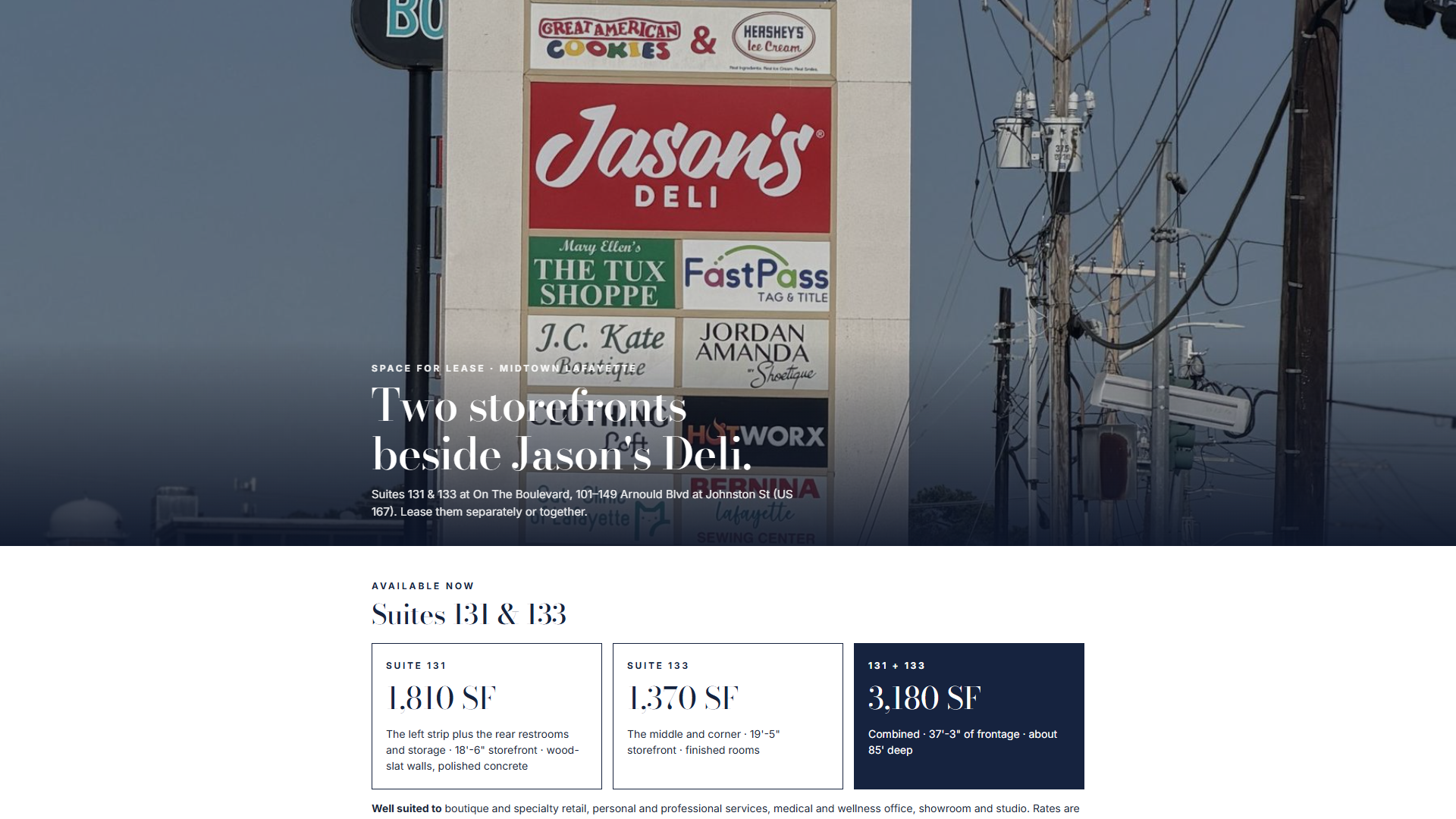
The page is static (public/leasing.html), edited by hand from the portfolio in
docs/leasing-portfolio-2026/. When the portfolio changes: rebuild it there, copy the
-web.pdf and the images into public/leasing-media/, run npm test (a test guards sizes,
stale figures, printed rates and asset paths), merge. tools/leasing-package.py is retired and
refuses to run.
§4.2/tour — the tour microsite
otb.cypresscommand.com/tour (no sign-in): per vacant suite a 360° viewer when panoramas are
published from B-1, otherwise the site plan and numbers; SF, "NNN · rate quoted per space",
combine and neighbours; Call Adam / Text to tour on (337) 769-1554; a link to /leasing.
Request a tour (name, mobile, e-mail, note → Send request) writes a deal, an L-1 note and
an AI-1 thread, and e-mails the owners when mail is configured. "Fully leased" when nothing is
vacant.
§4.3The 2026 marketing package
A 12-page landscape PDF, docs/marketing-package-2026/OTB-Marketing-Package-2026.pdf (copy on
G:\My Drive\00 OTB\): the 2020 aerials as day and night spreads with today's tenant signs
and pylon panels composited in from the A-8 sign faces (each spread notes "Signage updated
digitally"), plus pylon, colonnade and storefront pages. Approved 2026-10-20 ("minimal"
variant). It is not served by the app. To rebuild after a sign change:
python tools/marketing-2026/signage_composite.py --src <scratch> --out docs/marketing-package-2026/img --web 5464
python docs/marketing-package-2026/build.py --variant minimal
then print docs/marketing-package-2026/index.html to PDF with headless Chrome
(--print-to-pdf --no-pdf-header-footer).
§4.4Marketing rules
- Every printed piece uses (337) 769-1554 only.
- Never print a rate — B-1, /leasing, /tour, the packages. Rates are quoted in person or by the voice line's approved range; comps stay on R-2.
- Re-run the B-1 outputs (and the poster,
npm run poster) when availability changes.
PART VCounterparty guides
§5.1Owners
Sign in with your authorized e-mail. You see the sheets the operator shared — by default D-1, A-1, R-1, R-2, P-1 and S-1 — read-only. Highlights:
- P-1 shows budget vs actual, the reforecast, collections and (when shared) tenant health.
- R-2 is your month-over-month rent check; comps are visible to you, never printed.
- S-1 holds the Safe, the quarterly ⤓ Board / Lender / Stakeholder reports and ⤓ Build package.
- AI-1 → 📊 Briefs holds the monthly owner intelligence brief, every figure deterministic.
- When the Comm Log is shared you can play any call and read its summary and transcript; the call bell and toasts appear for you too, and you can turn on phone alerts from L-1.
§5.2Vendors
Sign in with the e-mail the operator has on file. You see one sheet:
- Your COI status, with a reminder when it is expired or expiring.
- + Send a file to management — upload to your private folder; your files list with Open.
- Assigned work orders — read the notes and photos, Add a note for management… (Enter), and ✓ Mark complete when done.
§5.3Tenants
Sign in with the e-mail management added. You see M-1 for your unit only:
- New request — urgency, what needs fixing, details, 📷 Photos → Submit request. Watch its status; add notes or photos to an open request.
- Your account — your balance, recent ledger lines and issued invoices (⤓).
- Monthly sales (optional) — "Share your monthly gross sales so we can spot trouble early and help. Only management sees them." Pick the month (last month by default; future months are refused), enter Gross sales $, Save. Re-entering a month overwrites it. The last six months are listed.
- Rent is paid through the payment link management sends — one link per unit, reusable monthly.
- Emergencies (water leak, electrical hazard, break-in, sewer): call (337) 769-1554 rather than filing a request.
§5.4Document signers
You receive a link from management. It opens a simple page — no account, no app. Review the request and any attached document, then sign or decline. The signature is recorded with timestamp and consent language under the federal E-SIGN Act and Louisiana UETA.
PART VIRhythms
§6.1Daily (mostly automatic)
- 11:00 UTC scan — renewals / holdovers / occupancy → AI-1 threads; work-order aging; camera heartbeat; rent-charge posting; unmatched-ACH threads; unbooked voice leads; UniFi outages; unfinalized calls swept into L-1; SOP occurrences and the one "SOPs overdue" digest. It also stamps D-1's Automation (cron) card — if that card goes brick, every one of these nets is silent; treat it as urgent.
- 12:00 and 23:45 local — camera frames classified and uploaded (hands-free).
- You — the Part II walk.
§6.2Monthly
- 1st: the owner intelligence brief generates itself; rent charges post themselves. Skim the brief before the owners do.
- Payment links: send or re-send; ACH posts itself; confirm or dismiss late-fee chips after the grace window.
- Month close (P-1): once the bank statement is in, close the month in Budget vs actual (§3.14) and read the reforecast.
- Rent check (R-2): step to the new month, review every pill, print for the owners.
- Comps: add any comp you heard about this month (§3.8).
- Tenant Watch: read the list; follow up on lapsed sales or flags.
- Property walk per SOP; update C-1 as found.
§6.3When a lease is signed or a fact changes (governed SOT update)
- Update the source of truth:
docs/lease-population-2026-09-10.mdand the suite'sleaseEvidenceinsrc/data/units.json(Tier 1 since the September 2026 review;docs/sot-2026-07/stays authoritative for suites it does not name). Rules:docs/sot-supersession-2026-09-11.md. - Apply the change to
src/data/units.json. Leave a leaseendblank when the signed documents do not resolve it — T-1, W-1 and R-2 then show "term unresolved" instead of a guessed date. No holdovers are assumed. npm run split-seedandnpm run concierge-context(the tests fail if you forget — deliberately).npm test→ commit → merge (deploys) → verify live.
Never trust an imported system's dates over signed paper. Store stated-rent exceptions as exceptions — do not "fix" them to formula.
§6.4Annually and periodically
- January: save the new year's budget on P-1 (§3.14); run the prior year's CAM reconciliation and print the statements.
- COI badges: chase at ≤ 60 days, escalate at ≤ 30 (§3.25).
- HVAC: semi-annual house PM (the anchor maintains its own HVAC with its designated contractor — tenant 100%).
- Move-out: solo walk and photos within 30 days; file to the unit's photos.
- Quarterly: S-1 ⤓ Board report to the owners.
- On request: ⤓ Build package (or
npm run diligence-package) for a lender or buyer.
PART VIIAdministration & recovery
§7.1The admin panel (sidebar, operator only)
- Preview owner view / Exit owner view — see exactly what owners see, for this session.
- Owners can see… — one checkbox per sheet, including X-1 and each Lab sheet.
- Sign-in access… — type an e-mail, choose role… (owner, vendor, tenant), then the company… (vendor) or unit… (tenant) → + Add. Pending sign-ins are listed with assign and a dismiss ✕; authorized rows have a revoke ✕ (removes the pre-authorization; demoting an existing profile is a Supabase console step).
- Phone lines… — the tenant and leasing line numbers → Save (feeds K-1 and M-1).
How do I add an owner?
Sign-in access… → e-mail → role owner → + Add. Their first magic link lands them as owner, seeing the sheets ticked in Owners can see….
How do I cut someone's access?
Owner: ✕ on their authorized row. Vendor: remove from the roster. Tenant: M-1 → Tenant logins → ✕.
§7.2Quality gates (never skip)
node --check on changed modules · npm test (1,138) · npm run build · merge · check the
live bundle name · smoke the live URL. Every push to master deploys through
.github/workflows/deploy.yml (npm ci → npm test → vercel build / deploy --prod); a failing
test blocks the deploy.
§7.3Deploying
Merge a PR to master — GitHub Actions deploys production. Manual fallback from this machine:
npx vercel deploy --prod --yes --scope adams-projects-0c52918e
Never promote a Preview deployment: previews run against the isolated Supabase branch, and the build aborts if production secrets leak into the Preview scope.
§7.4Backup & portability
- EXPORT JSON before any risky edit; IMPORT JSON restores (it replaces everything, without asking).
- The repo is the authoritative system; every export (dossier, buyer set, diligence package,
posters) is disposable and regenerable, and lands on
G:\My Drive\00 OTB\as well. OTB-Repo-Backup(daily 03:00) bundles full git history to Drive — committed work only.- Local review without login:
npm run dev:review(port 5174). It never creates a Supabase client or writes business records; confidential rents do not render — by design. - The manual: edit
docs/manual/*.md, runpython tools/build-manuals.py(rebuilds the three PDFs, the HTML andpublic/manual/, and copies the PDFs toG:\My Drive\00 OTB\Cypress Command Manual\), commit the outputs.
§7.5Secrets
Keys live only in Vercel env — never in chat, the repo or on disk. Rotations are scripted:
tools/rotate-secret.mjs (cron secret), tools/rotate-voice-secret.mjs (voice). One-shot keys
follow the drop-use-delete drill. Environment keys this edition depends on: the mail key and
NOTIFY_FROM (leasing-package and owner e-mails), the Twilio account variables (recordings,
texting once a sender is approved), the VAPID pair (phone alerts), the Map Tiles key (Google 3D),
the Anthropic key (AI-1, COI parsing).
§7.6The camera (C3) pipeline
Hands-free: sampler (5-minute ticks, watchdog-healed at logon and every 5 minutes) → midday and nightly classify + upload → D-1 and A-1. Quiet for 36 hours → an AI-1 thread. Capture day-directories are UTC-keyed; frames live outside the repo.
§7.7Known limits (deliberate v1 boundaries)
- E-sign, lease proposals and payment links: you transmit; the app sends nothing on its own. The exceptions are the leasing package (operator click or caller request) and owner notification e-mails.
- Budget actuals are hand-entered; there is no bank sync yet.
- Comps cannot be edited in place; R-2 owner figures stay in one browser.
- Voice: no live transfer, no SMS dispatch notices, texting waits on A2P approval; set a Twilio usage trigger as the daily cap.
- B-1, /leasing, /tour and the packages never print a rate.
- Desktop-first; the phone experience is a responsive web app, not a native app.
- A second property is onboarded by the operator (onboarding manual); no self-serve signup.
Questions the manual does not answer: ask the 🏛 Concierge — it is grounded in the same governed data this manual describes.
SECTION 1What onboarding does
A successful run creates, in one all-or-nothing transaction:
- The organization (management company) — or reuses it by slug if it already exists, so a second property lands under the same org.
- The property — slug, name, address, timezone, plus a
factslist (label/value/source rows that dashboard-class cards derive from). - The property settings row — ledger start month, renewal horizon, occupancy floor, late-fee schedule, and a free-form SOP settings object.
- The authorized-email list — email + role rows. No user accounts are forged: each person becomes real the first time they magic-link in, and the membership lattice assigns their role automatically.
The moment it lands, the property appears as a card on D-0 Portfolio, and — at two or more visible properties — the property switcher appears in the sidebar for every org-wide member. Nothing else changes: rent posting and API surfaces keep serving the default property until the new one is deliberately activated. Each card shows A/R outstanding and open work orders; Open → switches to that property (operating manual §3.1).
SECTION 2What to collect before you start (intake checklist)
Org (management company)
- Slug (lowercase, hyphens — permanent, choose once) and display name.
- Brand kit if available (palette / wordmark / contact block) — may start
empty
{}.
Property
- Slug (permanent), display name, street address, IANA timezone
(e.g.
America/Chicago). - Facts worth surfacing: GLA, unit count, parking (with source citations — "rent roll 2026-08", "site plan"…). Facts are display rows, not schema; add what the owner will want to see.
Settings
ledger_start_ym(YYYY-MM) — the first month rent charges will post. Choose the first FULL month on the platform; historical balances are a data-package concern, not an onboarding concern.renewal_horizon_days(default 180),occupancy_floor(default 0.85), late-fee schedule (late_grace_days/late_flat/late_per_day).- SOP answers (emergency policy, vendor rules …) — free jsonb under
settings.settings.
People
- Every email that should have access on day one, each tagged with a role:
operator(full control) orowner(read-only, operator-curated sheets). Vendors and tenants are NOT onboarding rows — they come later through the vendor roster and tenant-login editor inside the app.
SECTION 3Build the intake file
The easy way — the intake form (no technical knowledge needed)
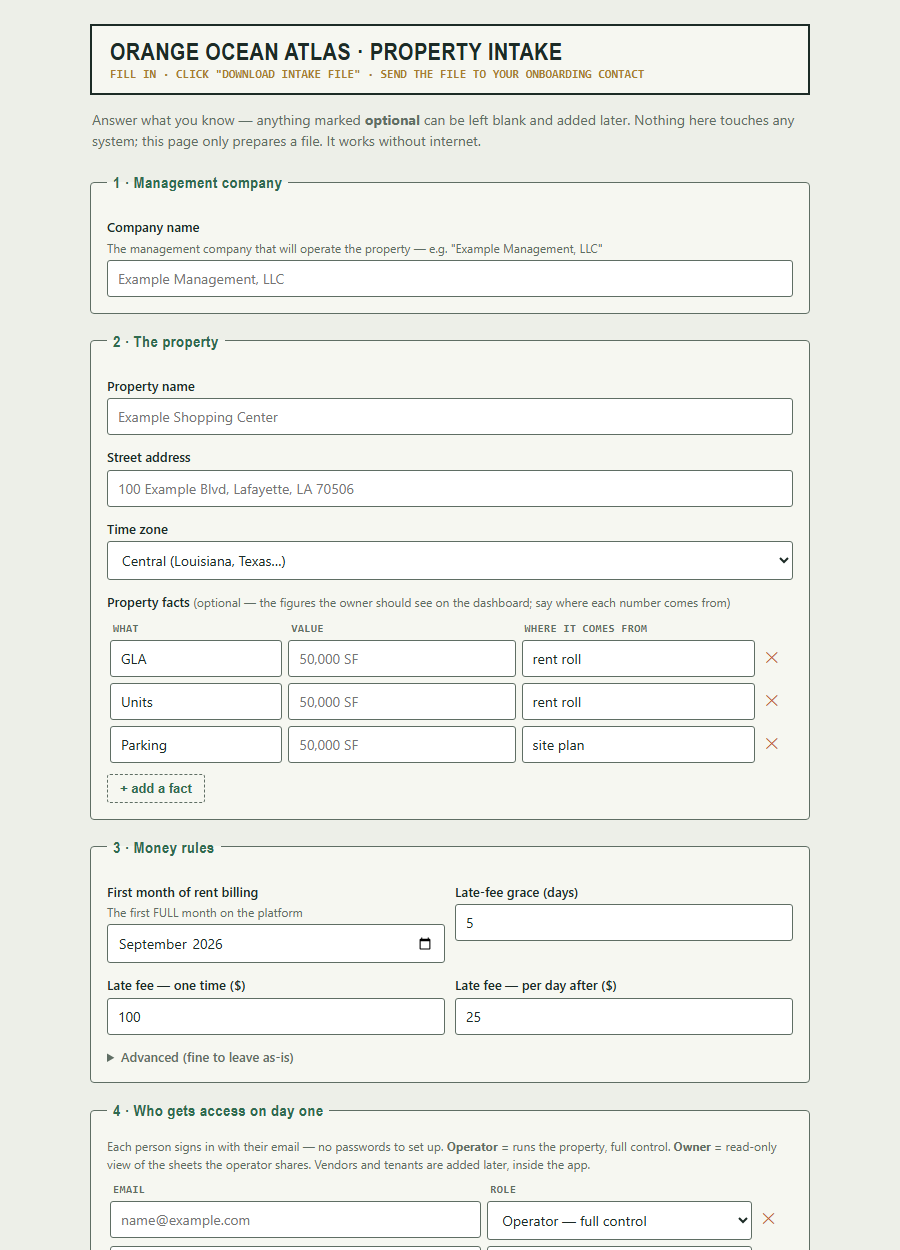
Send the new property's manager the intake form link —
https://otb.cypresscommand.com/manual/intake-form.html (or email them the
file itself, docs/phase-c/intake-form.html — it works offline too). They
answer plain-English questions — company name, property name and address,
first billing month, late-fee schedule, who gets access — then click
⤓ Download intake file and send back the resulting
intake-<property>.json. The form checks its own answers as they go
(problems appear in plain English), auto-derives the permanent slugs from the
names, and cannot produce a file the validator would reject. It only prepares
the file — nothing is created until you run the rail in §4–5.
Anything they skip (facts, notes) you can add to the JSON afterward; their
free-text notes arrive under settings.settings.intake_notes for you to
translate into real SOP settings.
The technical way — edit the JSON directly
Copy the template and fill it in:
docs/phase-c/onboarding-intake-template.json → docs/phase-c/intake-<slug>.json
{
  "org": {
    "slug": "example-mgmt",
    "name": "Example Management, LLC",
    "brand": {}
  },
  "property": {
    "slug": "example-center",
    "name": "Example Shopping Center",
    "address": "100 Example Blvd, Lafayette, LA 70506",
    "tz": "America/Chicago",
    "facts": [
      { "label": "GLA", "value": "50,000 SF", "source": "rent roll 2026-08" },
      { "label": "Parking", "value": "250 spaces", "source": "site plan" }
    ]
  },
  "settings": {
    "ledger_start_ym": "2026-09",
    "renewal_horizon_days": 180,
    "occupancy_floor": 0.85,
    "late_grace_days": 5,
    "late_flat": 100,
    "late_per_day": 25,
    "settings": {}
  },
  "authorized": [
    { "email": "operator@example.com", "role": "operator" },
    { "email": "owner@example.com", "role": "owner" }
  ]
}
Rules the validator enforces (the tool refuses to touch the database on any
error): slug shape, timezone shape, YYYY-MM ledger start, role whitelist,
fact and authorized row shapes. Reusing an existing org slug is legitimate
(that is how a portfolio grows); reusing an existing property slug under
the same org is refused.
SECTION 4Dry-run
node tools/onboard-property.mjs docs/phase-c/intake-<slug>.json --dry-run
Validates the file and prints the full plan — org reuse vs create, the property row, settings, and authorized emails — without any database contact. Fix anything wrong and re-run until the plan reads exactly like the deal.
SECTION 5Live run
The live run uses the standard CRON_SECRET pull-load-delete drill (the secret is pulled from Vercel env for the moment of use — never typed into chat, never left on disk):
node tools/onboard-property.mjs docs/phase-c/intake-<slug>.json
The RPC is all-or-nothing: any failure rolls the entire intake back. A
duplicate property raises (P0001) and clobbers nothing — this is the
protection, not an error to work around.
SECTION 6Verify (two minutes)
In the app (as an org-wide member):
- D-0 Portfolio shows the new property's card ($0 A/R, 0 work orders — correct for an empty property).
- The property switcher now renders in the sidebar (it appears only at two or more visible properties).
- Switch to the new property — every sheet boots empty. That is correct: a fresh property has no data package (§8).
In SQL (Supabase console), if you want belt-and-suspenders:
select p.slug, p.name, p.created_at, s.ledger_start_ym
from properties p join property_settings s on s.property_id = p.id
order by p.created_at;

select email, role from authorized_emails order by email;
Financial isolation: the rent cron posts only to the default property;
api/* still resolves the flagship. A newly onboarded property cannot create
financial side effects until it is deliberately given a data package and
activated.
SECTION 7First sign-ins
Send each authorized person to the login page — they enter their email and click the magic link; their membership row and role materialize on first sign-in. Nothing to provision, no passwords to distribute.
- The new operator lands with full control of their (empty) property.
- Owners land read-only on the operator-curated sheet set.
- Anyone not on the authorized list lands on the pending screen with no data access — promote or ignore from the sidebar's access panel.
SECTION 8The v1 fences (deliberate — do not fight them)
- No data package. Onboarding creates the container, not the contents: units, geometry, rent roll, and seeds are the site-plan-tier premium step (Phase C data-package pipeline). Until that lands for the new property, the 28 property sheets remain bound to the flagship's bundled data — the new property renders correctly on D-0 and boots its own sheets empty. That includes the October 2026 additions: R-2 rent comps, the P-1 budget and actuals, and D-1 Tenant Watch (whose tenant sales are keyed by property, so a new property starts with none).
- Known residual while switched: manual edits made while you are actively switched INTO a data-less property will sync to that property. Don't do data entry on a property that hasn't had its package built.
- No storage folder prefixes yet — the decision is deferred until the first real pilot's document volume makes the shape obvious.
- No self-serve UI. Governed, operator-driven onboarding is the deliberate wedge; a UI can wrap this rail later without changing it.
SECTION 9Teardown (removing a property)
The C-2 proof property was created and torn down cleanly with this exact pattern. Order matters (children first), and this is irreversible — read twice, run once:
-- any typed-layer/child rows first (comp_state, board_state, …), then:
delete from property_settings
 where property_id = (select id from properties where slug = '<slug>');
delete from properties where slug = '<slug>';
Then verify: D-0 shows one card fewer; the switcher disappears if only one property remains; the flagship's data is untouched.
SECTION 10Troubleshooting
| Symptom | Meaning | Do |
|---|---|---|
| Validator errors on dry-run | Intake file shape is wrong | Fix the listed fields; nothing was sent |
P0001 duplicate raise on live run |
Property slug already exists under that org | This is the no-clobber guard. Pick a new slug, or tear down the old property first |
| New property card missing on D-0 | Viewer is not an org-wide member | Check the viewer's membership; org-wide members see all properties |
| Switcher not visible | Only one property is visible to you | Correct at one property — it renders at two or more |
| Sheets look like the flagship after switching | You are looking at bundled flagship data | Expected until the property's own data package exists (§8) |
| Someone stuck on "pending" | Email wasn't in authorized, or typo'd |
Add/fix via the sidebar access panel; they re-click a fresh magic link |
Provenance: intake contract and rail design docs/phase-c/01-onboarding-design.md;
validation seam src/lib/onboard.js; RPC migration onboarding_rpc; driver
tools/onboard-property.mjs. The rail was smoke-tested under rollback on
prod and funnel-proven live by the C-2 run (property created via the rail,
verified, then torn down).